Documentation / Faults, repairs and reminders
Reminders
IntelliFleet watches every date and odometer deadline of your vehicles and Employees: insurance policies, technical inspections, tachograph legalisation, service at a given odometer reading, planned repairs, driving licences, medical checks and the other documents of your drivers, and the stock of parts running low. Each of these is a Due item. A Reminder is the notice IntelliFleet sends ahead of it.
Only Active vehicles get Reminders. A vehicle that is Inactive, Sold or Scrapped is left out until it is made Active again.
Who can see and acknowledge Reminders
In Administration, then Roles, two permissions under IntelliFleet decide this:
- Reminders lets a user open IntelliFleet > Reminders and see the Due items on the dashboard.
- Acknowledge reminders also lets them acknowledge a Due item and reopen it.
A user sees the Due items of the vehicles and Employees of their own branches. The Branch and Fleet filter in the IntelliFleet header narrows the page and the dashboard further.
When a Due item shows
A Due item appears once it falls within the reminder window. Set the window in IntelliFleet > Settings, General: Days before (30 by default) for dates, Km before (1 000 by default) for odometer readings. An odometer deadline needs a recorded reading of the vehicle; until one exists it does not show.
Each Due item has a state:
- Overdue: the date has passed or the reading is reached.
- Due soon: within 14 days, or within half the kilometre window.
- Open: within the window, but not yet soon.
A window per type
The window above is the company default. Under Settings, General, Reminders by type, every type of Due item can have its own window: insurance, inspections and vehicle deadlines, documents and equipment, tyres, repairs, Employee deadlines and licences, fuel cards, financing, calendar, and low stock. For each type:
- On/Off: switch a type Off to take it out of the Reminders page, the dashboard, the e-mails and the push notifications. Its Due items are still tracked, and the Due dates and documents report still lists them.
- Days before and Km before: this type's own window. Leave a field empty to use the company default. The Due soon state does not change: 14 days, or half the kilometre window (so a window shorter than 14 days is all Due soon).
Low stock has only the On/Off switch, since it has neither a date nor an odometer reading.
Repairs and low stock
Two more kinds of Due item come from Faults and repairs and from the stock on Checks, tasks and stock:
- Planned repair: a repair with the status Planned is due on its date, about its vehicle.
- Next service due: the next-service odometer of a repair, planned, open or completed, is due at that reading, once the vehicle has a recorded reading. Another completed repair of the same vehicle done at or past that reading ends it. A completed repair has no date Due item, but the next service it names stays due until another completed repair at or past that reading renews it, so an oil change done at 45 000 km reminds you of the service at 55 000 km. Repairs imported from the old app with a LICZTERM show this way, whether or not they are marked done.
- Low stock: a stock item whose quantity is at or below its reorder level (a level above zero) is due until a delivery lifts the quantity above it. An acknowledgement holds for that quantity, so when the stock runs low again after a delivery the item is open again.
Stock belongs to no branch. Low stock shows on the Reminders page (type button Low stock), the dashboard (a tile of its own) and the Due dates and documents report only while no Branch or Fleet is picked in the header, and it is e-mailed to the managers of the top-level branches.
The Reminders page
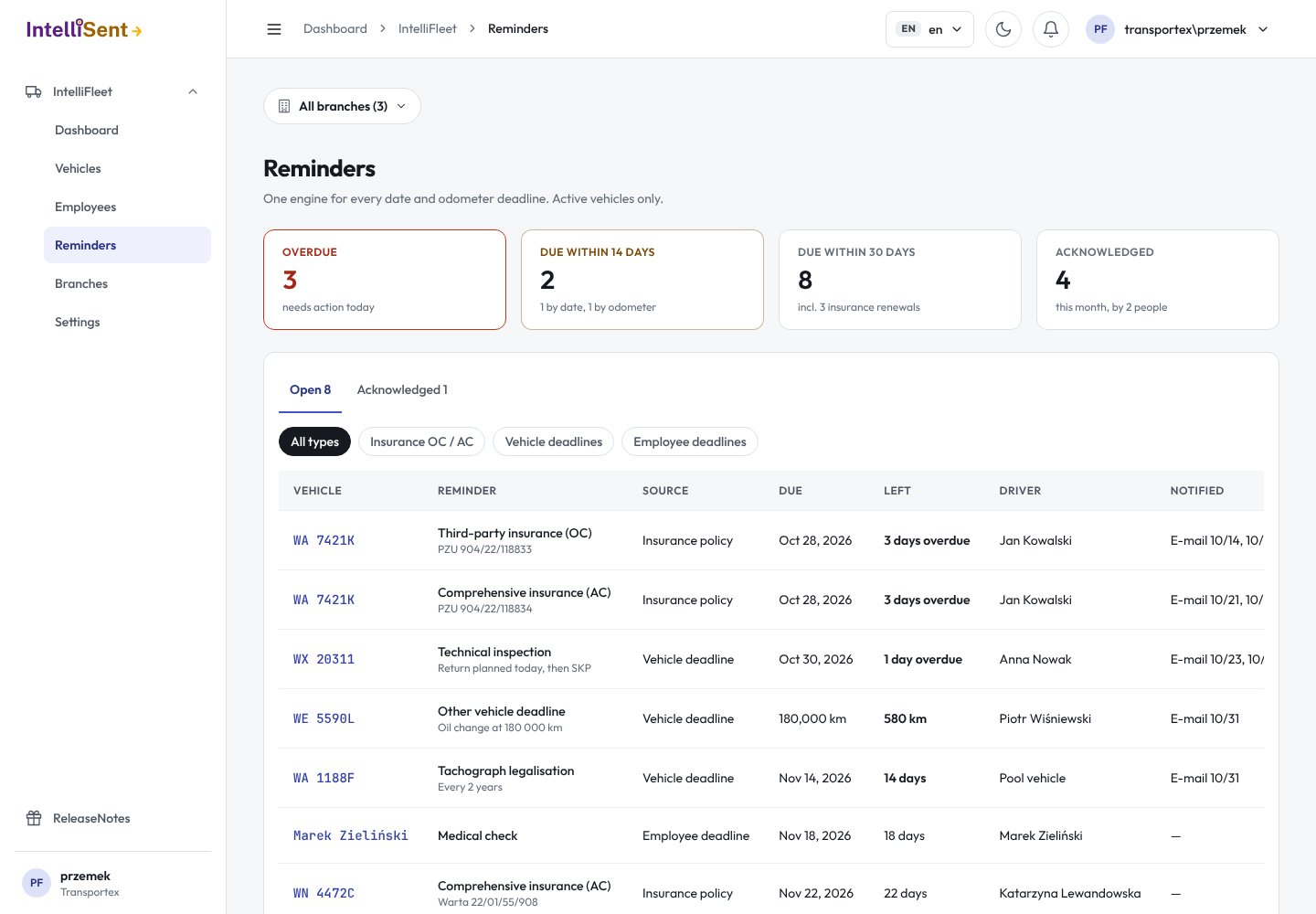
The tiles at the top count what is overdue, what is due within 14 days (by date and by odometer), what is due within the window (with the insurance renewals among them), and how many Due items were acknowledged this month and by how many people.
Below them, Open lists what nobody has acknowledged yet and Acknowledged what someone has. The type buttons narrow the list to insurance, vehicle deadlines (which include repairs), Employee deadlines or low stock. Each row shows the vehicle or Employee, the Due item and its policy or document number, the due date or odometer reading, what is left, the driver ("Pool vehicle" when the vehicle has no default driver), when e-mails about it went out and its state. Click a registration number to open the vehicle.
Calendar in the page header shows the same Due items by their due date, with the calendar events, bookings and planned repairs you may see; see Calendar.
Acknowledge a Due item
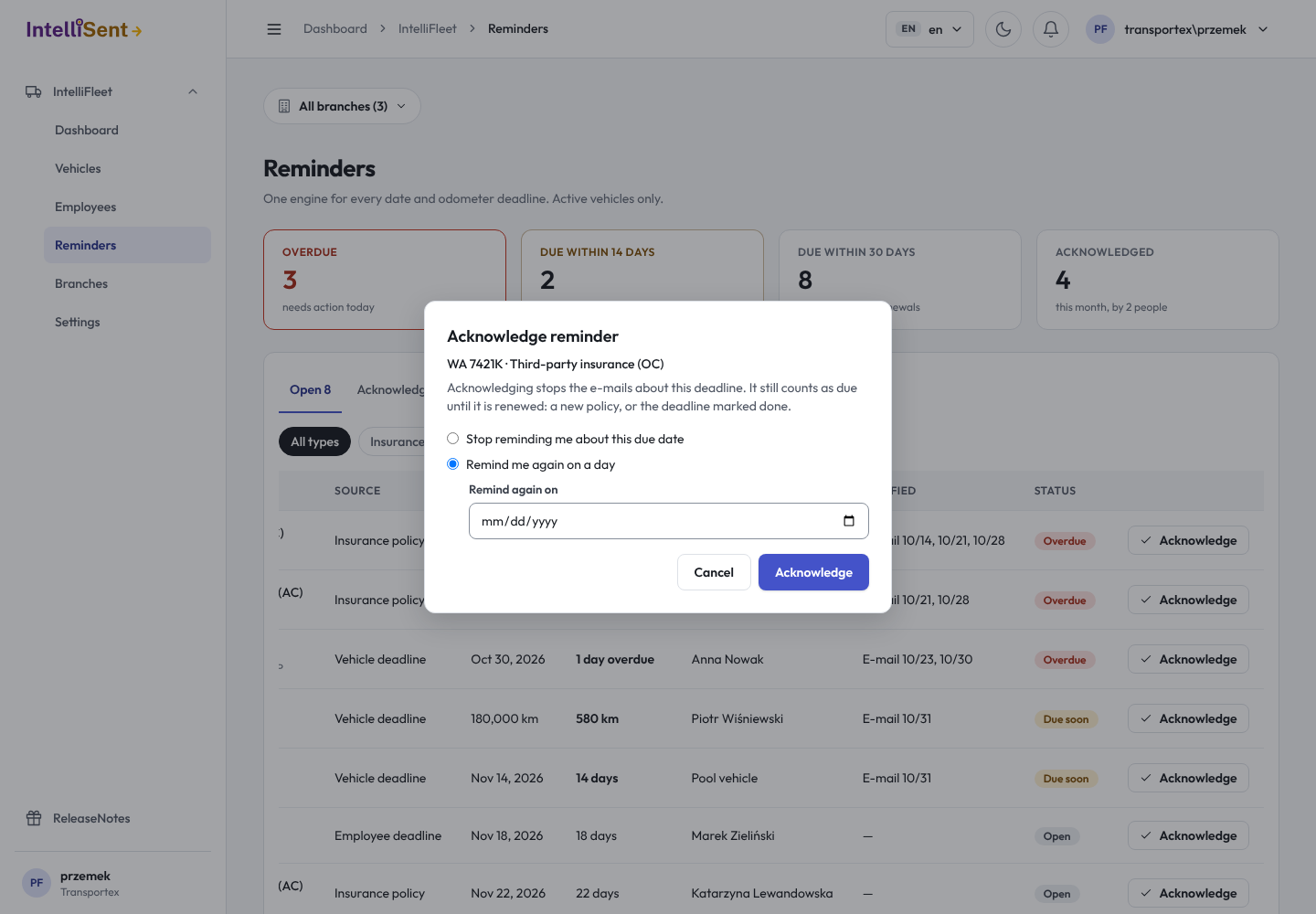
Click Acknowledge and choose:
- Stop reminding me about this due date: no more e-mails about this date or reading.
- Remind me again on a day: the e-mails pause until that day.
Acknowledging does not renew anything. The Due item still counts as overdue or due on the page and the dashboard, now on the Acknowledged tab, until it is renewed. Click Reopen to take an acknowledgement back. When the due date changes, for example after you correct it, the Due item is open again.
Renew a Due item
A Due item ends when it is renewed:
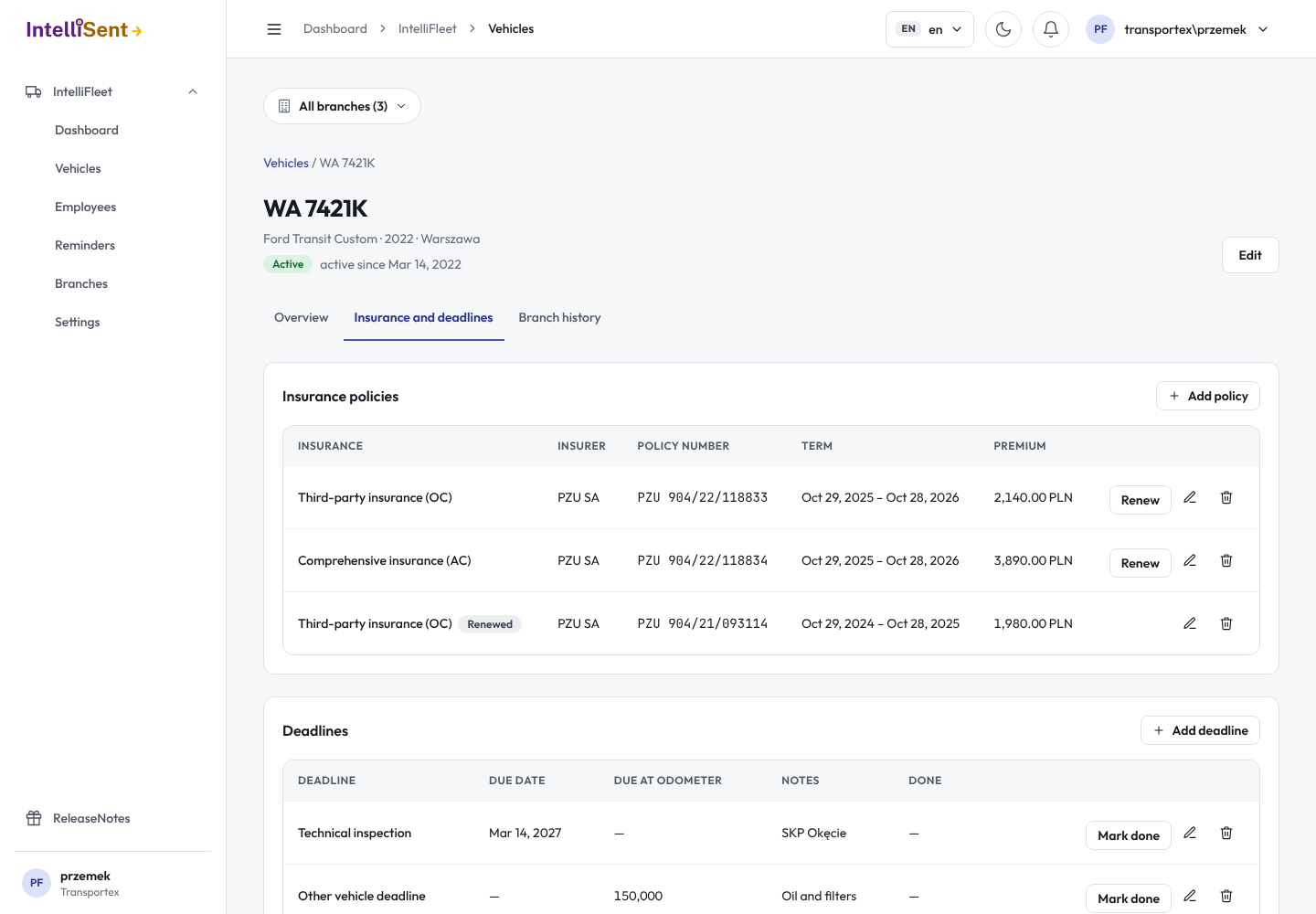
- Insurance: on the vehicle's card, tab Insurance and deadlines, click Renew on the policy. The new policy starts the day after the old one ends and runs for a year; check the dates, add the policy number and premium, and save. The old policy is marked Renewed.
- Vehicle deadlines (inspection, tachograph, warranty service and others): click Mark done on the deadline, enter the day it was done and, to keep the Reminders going, the next due date or odometer reading.
- Employee deadlines: open the Employee and, under Deadlines, click Mark done in the same way. A driving licence is renewed by changing its expiry date on the Employee.
A deadline can be due on a date, at an odometer reading, or at both; it is due at whichever comes first.
E-mails
Once an hour IntelliFleet collects the Due items that are overdue, due soon or due within the window, and e-mails them to the manager of the vehicle's or Employee's branch (set on the branch, with an e-mail address on the manager's Employee record). A branch without a manager hands its Due items to the nearest manager above it. Each manager gets one e-mail with all their Due items.
A Due item is e-mailed at most once a week, and at once when it becomes overdue. Acknowledged Due items are not e-mailed. The e-mail is in the company's default language. Each e-mail counts towards the e-mails in Usage.
Notifications in IntelliSent
A branch manager whose Employee record is linked to an IntelliSent user also gets a notification in the bell, sent together with each e-mail: how many Due items need attention and how many of them are overdue. Open IntelliFleet > Reminders for the details. A manager without a linked user gets the e-mail only. If a notification cannot be delivered, IntelliFleet tries again on the next hourly run, up to five times; the e-mails and the Reminders page are not affected.
Driver notifications
The driver who holds a vehicle also gets a push notification in the driver app for that vehicle's overdue and due Due items, on the same rules as the e-mail: at most once a week for each, and at once when it becomes overdue. Acknowledged Due items are not sent. A driver who has not allowed notifications, or has no phone signed in, gets none, and sees the same list on the Reminders tab of the app (see Driver app). Each notification counts towards the push notifications in Usage.
The dashboard
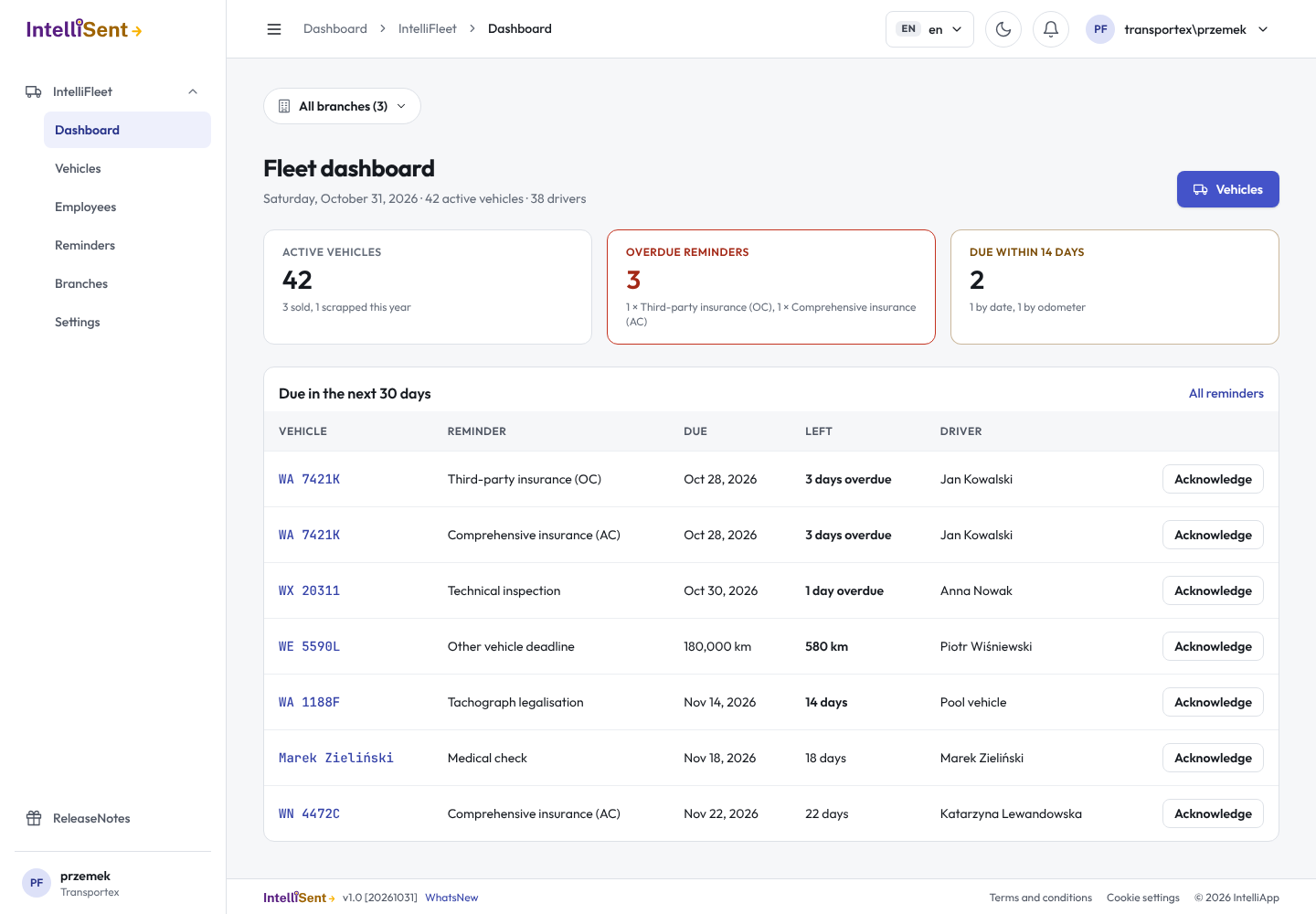
IntelliFleet > Dashboard shows the active vehicles (with the ones sold and scrapped this year), the overdue Reminders by type, what is due within 14 days, a tile with the stock running low (when some is), and the Due items of the next days with Acknowledge. All reminders opens the Reminders page.