
Documentation / Vehicles, people and documents
Employees
Employees are the people in your fleet records: the people who drive your vehicles and, later, receive them at a handover. An employee does not need a login. Give one a login only when they should use the driver app on their phone.
Who can see and change employees
In Administration, then Roles, three permissions under IntelliFleet decide this:
- Employees lets a user see the list.
- Edit employees also lets them add, change and delete employees.
- Manage driver app logins lets them create, link and remove an employee's login.
The menu entry IntelliFleet > Employees shows only for users with the first permission. Once access per branch is switched on, a user sees the employees of their own branches.
The list
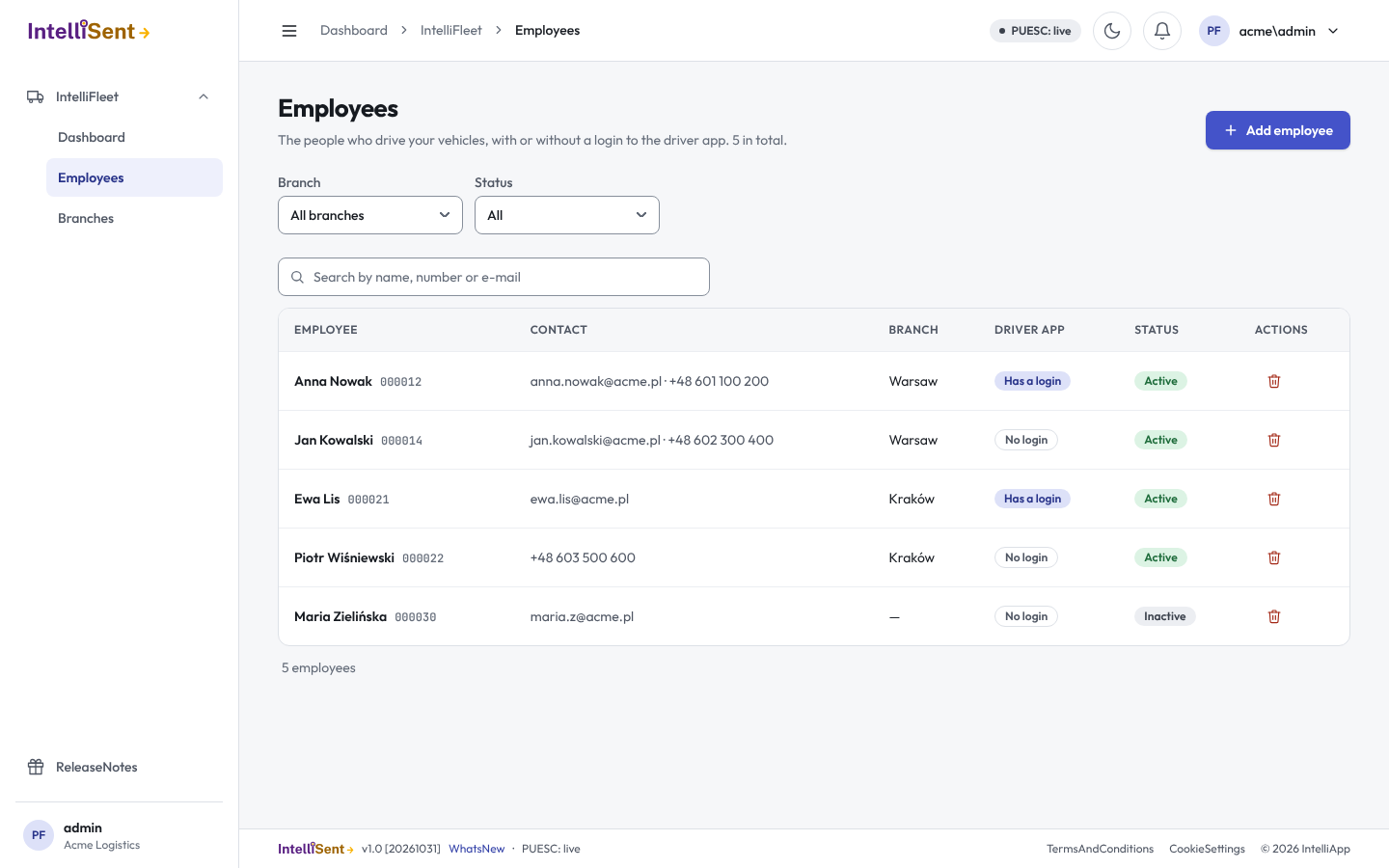
The list shows each employee's name and number, contact details, branch, whether they have a driver app login, and whether they are active. Search by name, number or e-mail address, and filter by branch or by active and inactive. Click a row to open the employee.
Add or change an employee
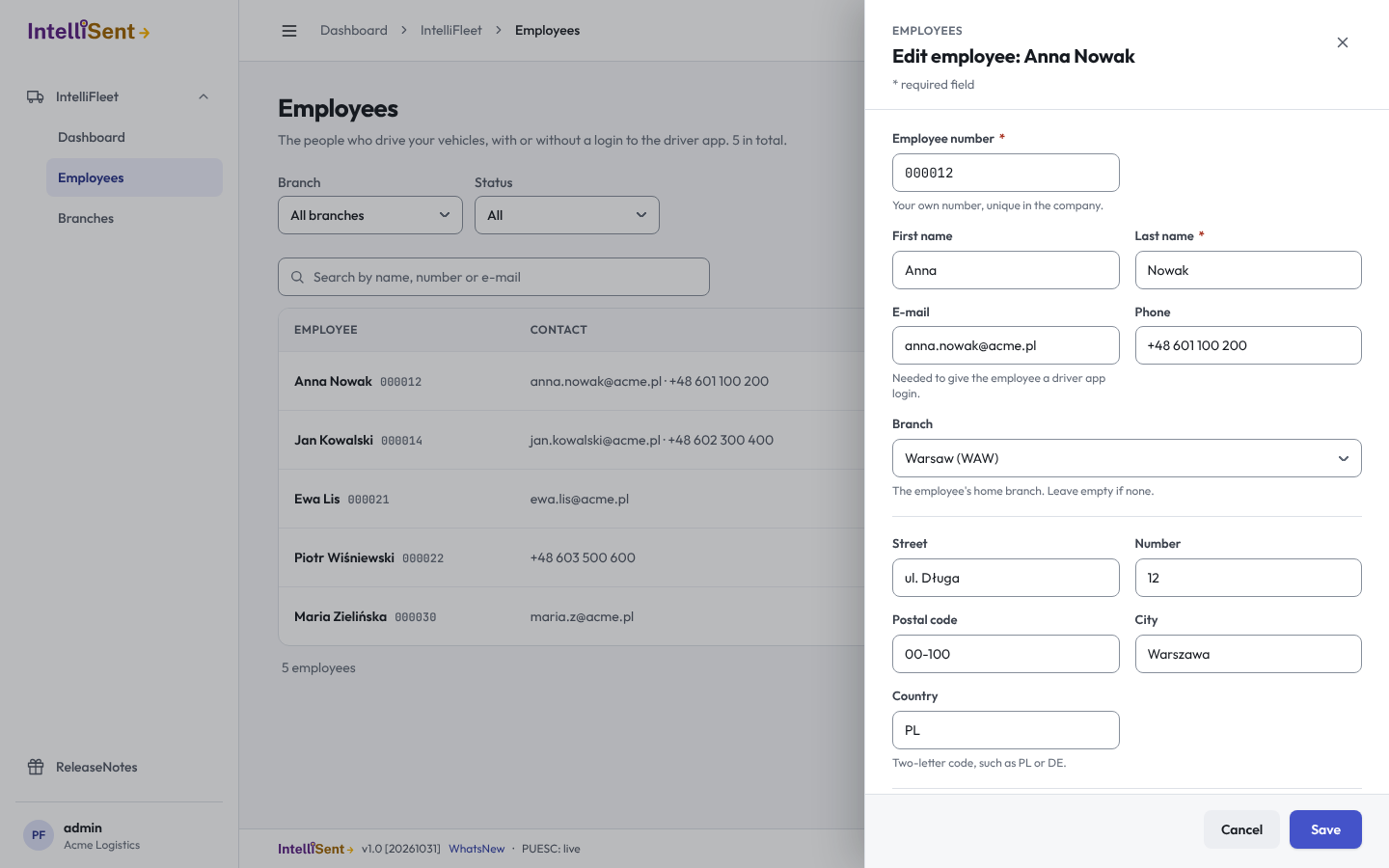
- Click Add employee, or click a row to change one.
- Fill in the Employee number, your own number for the person. It must be unique in your company;
000021and00021count as two different numbers. Add the Last name, and the first name, contact details, home Branch and address if you want. - For a driver, add the driving licence number, categories and the date it is valid until.
- Click Save.
Untick Active for a person who has left but whose history you want to keep.
Give an employee a driver app login
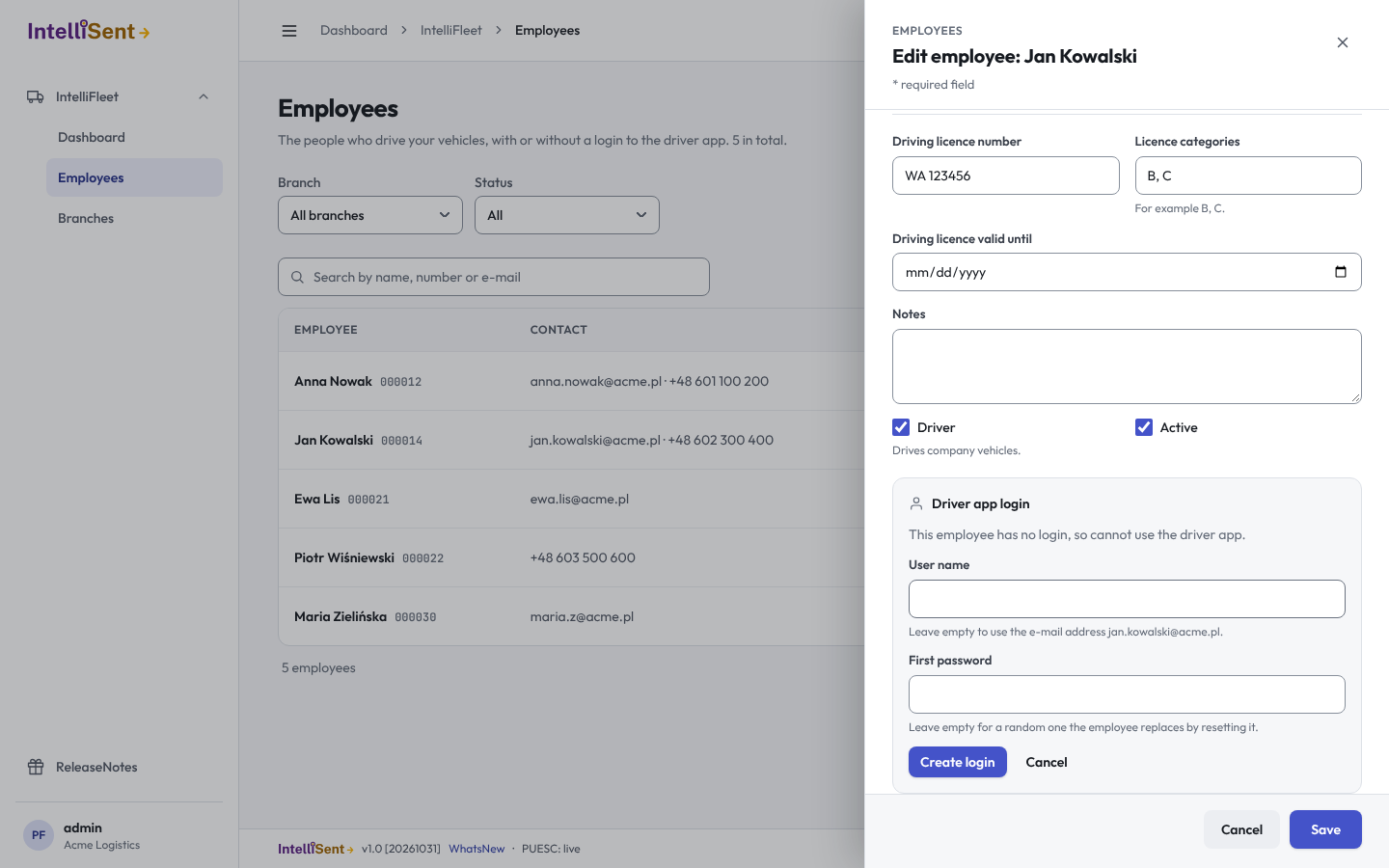
At the bottom of the employee, Driver app login shows whether the person has a login. The login can use only the driver app. It cannot open the office screens. Each button here works at once; you do not need to click Save.
- Create login makes a new user from the employee's e-mail address, so enter and save the e-mail address first. The user name is the e-mail address unless you type another. You may type a first password; if you leave it empty, the employee sets their own through the password reset on the sign-in page.
- Link an existing user attaches a user who already has an account in your company, for example someone who signs in to the office screens too. The user keeps their other roles and also gets the driver role.
- Remove login ends the link and takes the driver role away. The user stays, so nothing else they use is lost.
One employee has at most one login, and one user belongs to at most one employee.
What an employee holds
Users who may see Equipment and tyres get an Equipment tab on the employee's card: what the employee holds now and every item they held before, with the protocols that moved it. Hand over equipment opens a desk handover of their items (see Hand over equipment).
Delete an employee
Click the bin on a row and confirm. An employee cannot be deleted while:
- they have a driver app login (remove the login first),
- they manage a branch (choose another manager for the branch first), or
- vehicles, handovers or other records still refer to them. Untick Active instead.
A deleted employee stays in the history, so their number can be used again for a new employee.
Files of an employee
The employee's card has a Files tab. Drag files onto the card, or click Add files: a driving licence or a medical certificate becomes the employee's document with its expiry date, read by AI, and anything else stays on the Files tab. See Drop files on a vehicle or an Employee.