
Documentation / Everyday use
Fleet policies and consents
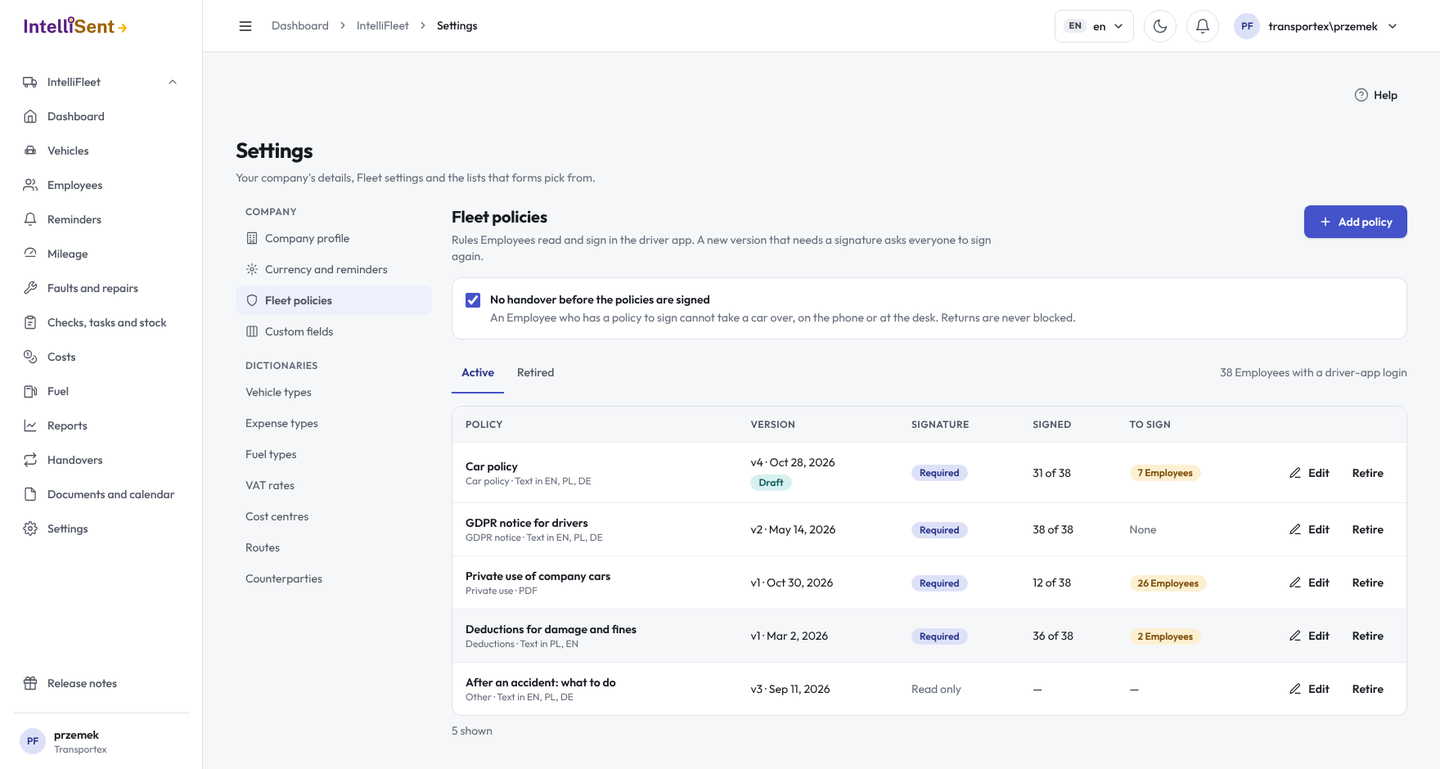
IntelliFleet › Settings › Fleet policies keeps the rules your Employees read and sign in the driver app: the car policy, the GDPR notice for drivers, the rules on private use or on deductions for damage and fines. Each policy has versions. An Employee signs a version with their name and a finger signature, and IntelliFleet keeps that consent with a PDF of what they signed. Only people whose role has Settings and dictionaries can manage policies; anyone who may see Employees sees who has signed what.
Adding a policy
Click Add policy, give it a name and a kind, and write the first version:
- Text: a title and the text in English, Polish and German (tabs at the top). Use headings, lists and bold text (Markdown). A language left empty shows the English text, so you can start with one language.
- PDF file: one PDF, the same in every language, for a policy you already have as a document.
- Employees sign this policy: on for a policy every Employee with a driver-app login signs; off for one they only read, such as what to do after an accident.
Save draft keeps the draft without showing it to anyone. Publish v1 makes it the version Employees see. A published version never changes.
A new version
Open the policy and edit it: you are writing the next version, starting from the current one. The drawer shows the published versions underneath, each with its date, who published it and its hash; View shows the text or opens the PDF.
- With Everyone signs this version again on, every Employee is asked to sign the new version, also those who signed the old one.
- Turn it off for a typo: Employees who signed the previous version stay signed, and new Employees sign the new one.
Delete draft drops a draft you do not want; the published versions stay.
Who has signed
The table shows each policy's current version, whether it needs a signature, how many Employees have signed it and how many have it to sign. Only active Employees with a driver-app login are asked to sign (see Employees).
On the Employee card, the Policies tab lists every policy with where the Employee stands: To sign since the day the version was published, Signed with the time, or No signature for a policy to read. Click a signed one to see the consent: the name they signed with, when (with the time in UTC on the PDF), the language, the app version, the hash of the version they read and the hash of the PDF. Download PDF gives the consent PDF with the text they read and their signature.
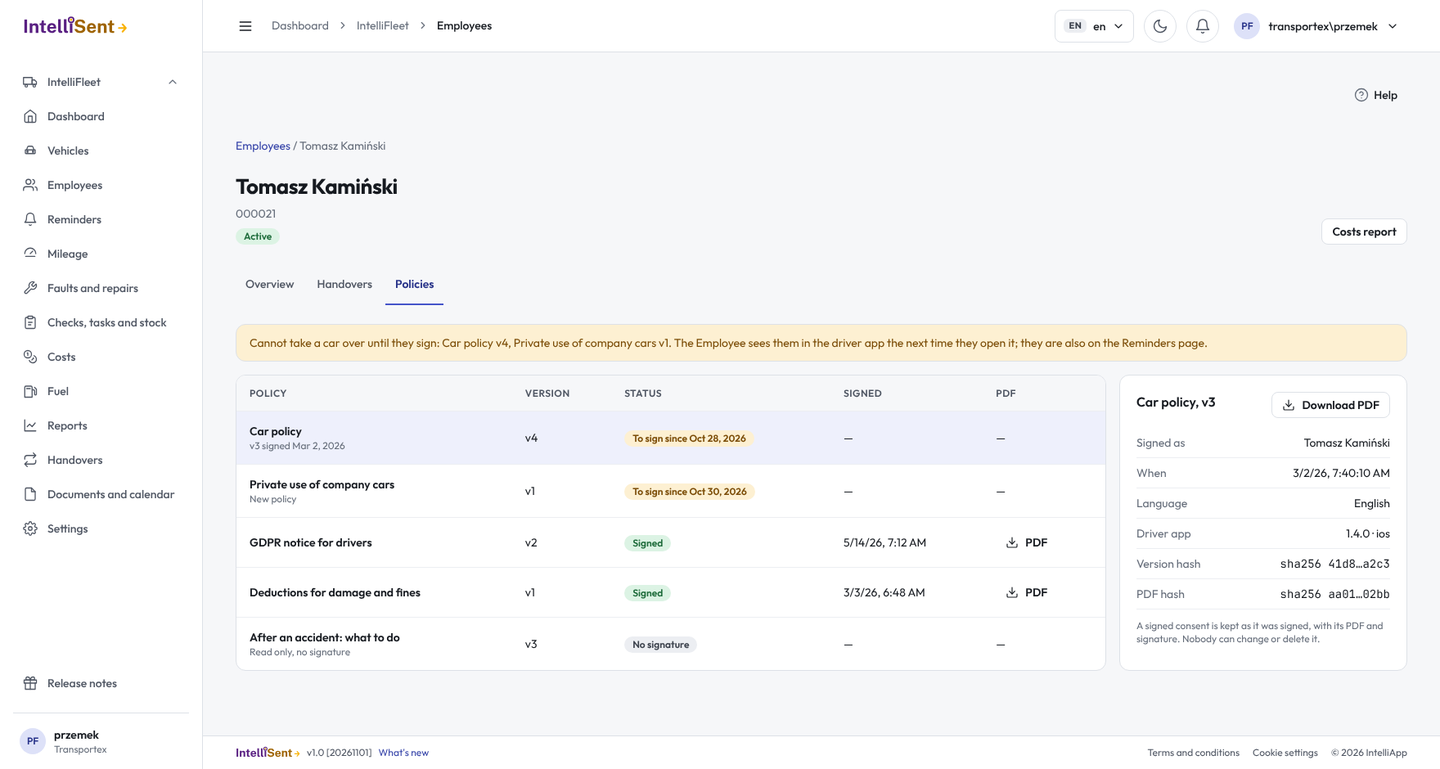
A signed consent is evidence: nobody can change or delete it, nor its PDF and signature.
Reminders
An Employee with a policy to sign gets one Fleet policies to sign item on the Reminders page (see Reminders), under Employee deadlines. It is due 7 days after the version that asks for the signature was published, and goes away when the Employee signs.
No handover before the policies are signed
Tick No handover before the policies are signed at the top of the screen to hold vehicles back: an Employee who has a policy to sign cannot take a car over, on the phone or at the desk, until they sign. The message says which policies. Returning a car is never blocked. With the box unticked, policies to sign are only a reminder.
Retiring a policy
Retire stops asking anyone to sign the policy and takes it off the Reminders. Signed consents stay as they are. Retired policies are under Retired, where Bring back makes one active again.
In the driver app
After signing in, the driver sees the policies they have to sign, reads each one to the end and signs it with their name, a finger signature and a tick to accept it. See Driver app.