
Documentation / Getting started and setup
Custom fields
IntelliFleet › Settings › Custom fields lets you add your own fields to vehicles, employees, repairs, fuel entries, fault reports, damages, Handovers, trips, insurance policies and financing agreements, for example a fuel card number, a seal number on a Handover or a project code on a trip, without waiting for us to build them. Expenses and documents can be picked too; their forms show the fields once those screens are in Fleet. Only people whose role has Settings and dictionaries can define fields; everyone fills them in on the forms.
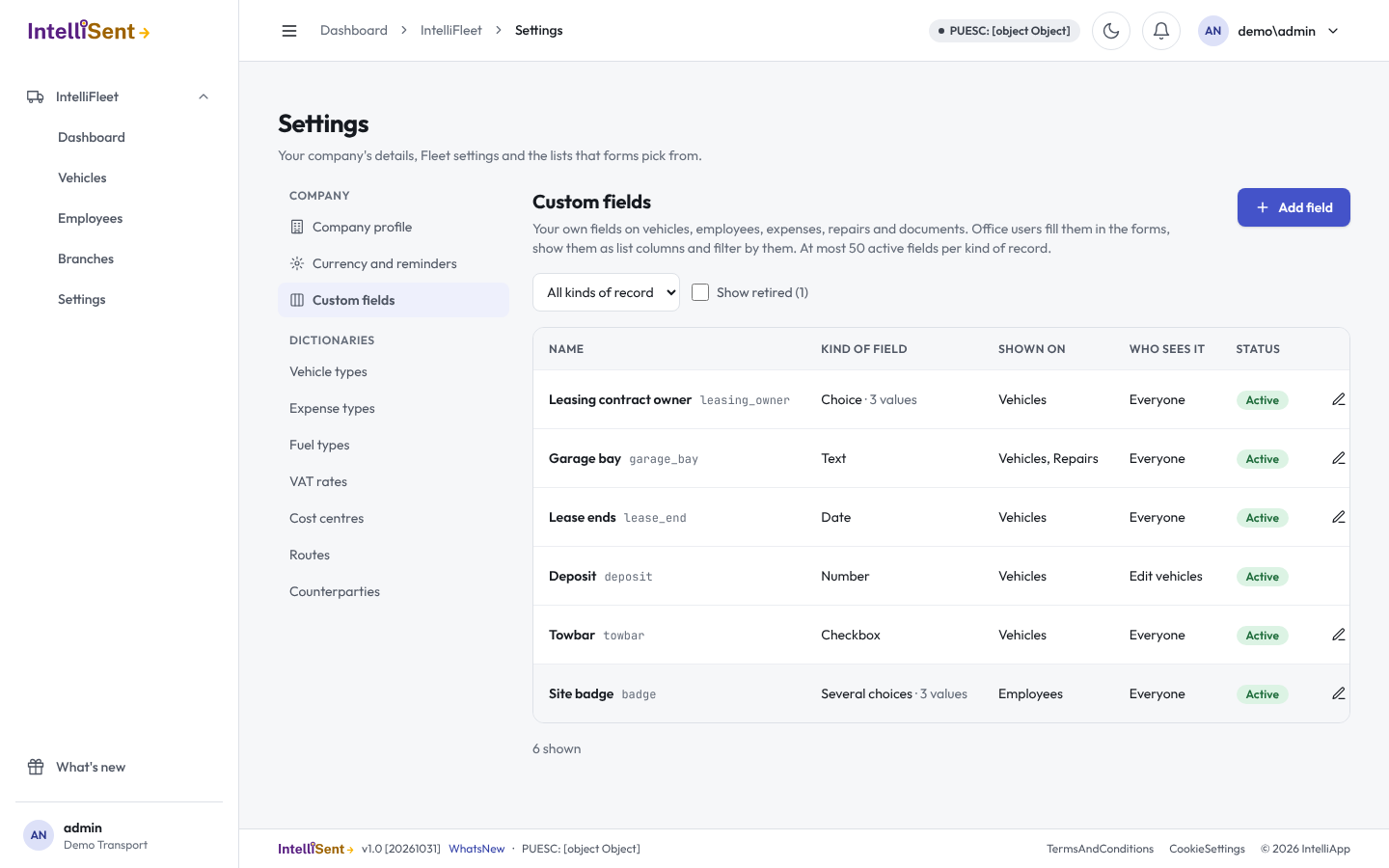
Adding a field
Click Add field and fill in:
- Name: what people see on forms and lists. You can give a Polish and a German name as well; where one is missing, the English name is shown.
- Code: a short internal name made of letters, digits and underscores, starting with a letter (for example
FuelCard). It is filled in from the name and must be unique in your company. - Kind of field: Text, Checkbox, Choice, Several choices, Number or Date.
- Values to choose from: for Choice and Several choices, one value per line (up to 100).
- Shown on: the records the field belongs to: vehicles, employees, expenses, repairs, documents, fuel entries, fault reports, damages, Handovers, insurance policies, financing agreements or trips. A field can be on several.
- Ask the driver: shown when the field is on Handovers or fault reports. Tick the record on which the driver app asks the driver for it (see below). A Several choices field cannot be asked.
- Who sees it: leave Everyone, or pick a permission; then only people with it see and fill in the field, on forms, lists, cards and exports.
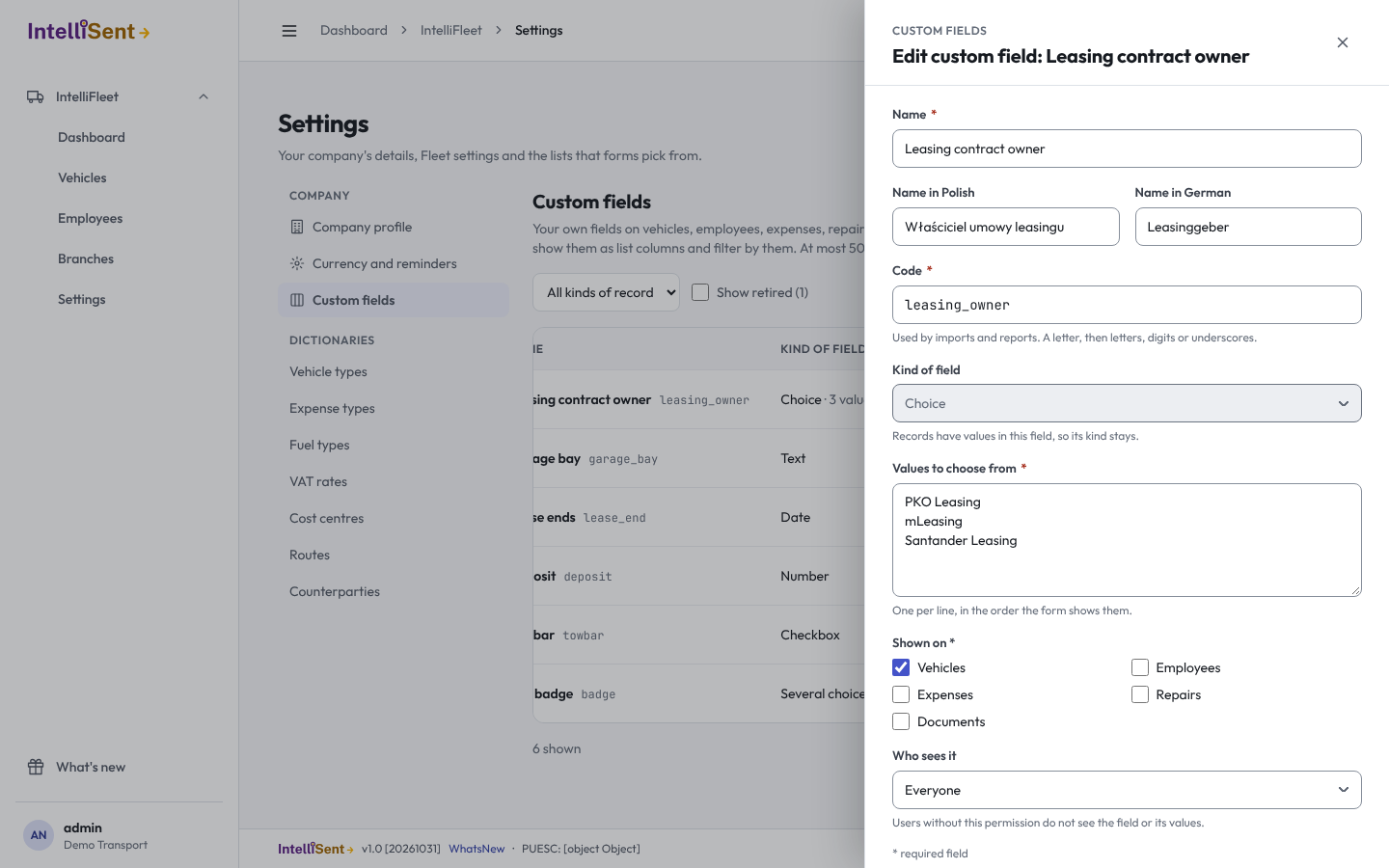
Each kind of record holds up to 50 active fields by default; your administrator can raise the limit.
Filling it in
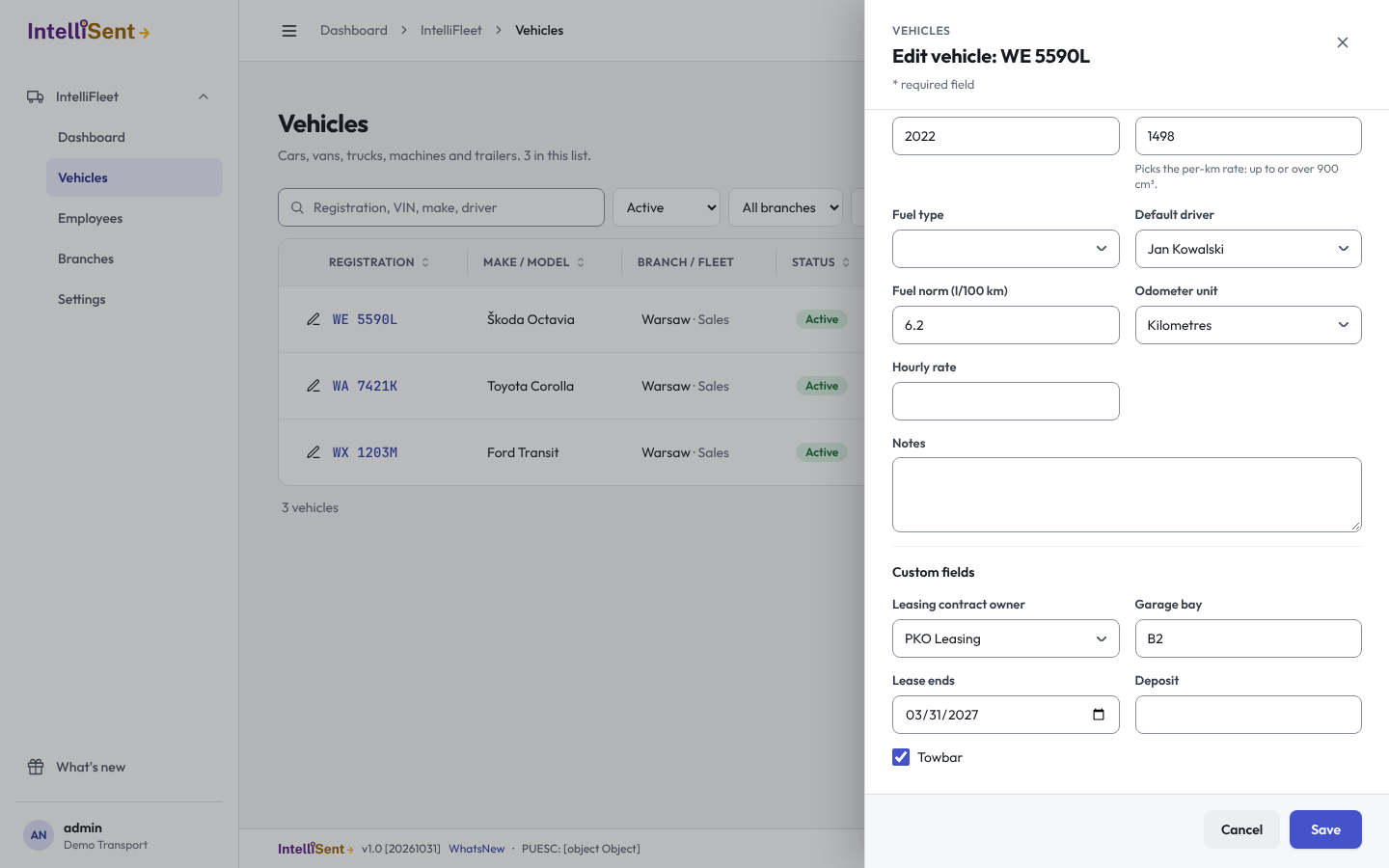
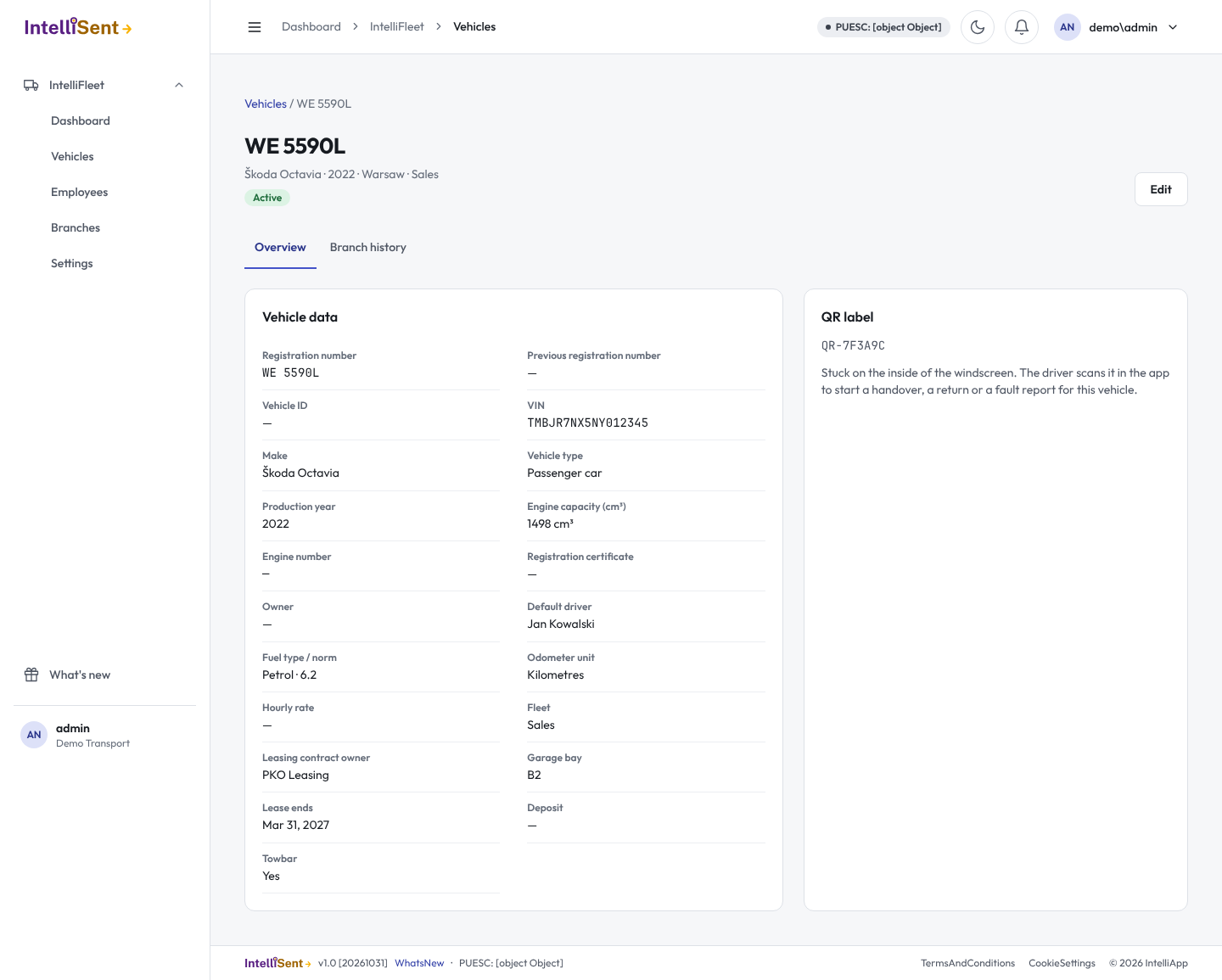
Custom fields appear at the end of the forms of the records they are on, under Custom fields: vehicles, employees, repairs, fuel entries, fault reports, damages, trips, insurance policies, financing agreements, and the desk Handover after its checklist. They are shown on the vehicle and employee cards, next to each insurance policy and financing agreement on the vehicle card, and in the Handover protocol. They are checked when you save: a number must be a number, a date a date, a choice one of the values.
Asking the driver
A field ticked under Ask the driver appears in the driver app: Handover fields on the checklist step of a handover or return, fault report fields on the Report a fault screen. The driver types text or a number, enters a date as dd.mm.yyyy, picks a choice or answers Yes or No. The app checks the values as the web forms do and keeps them with the report when the phone is offline; they are sent with it. Fields only the office fills in, and fields the driver's role may not see, are not asked.
Lists, filters and export
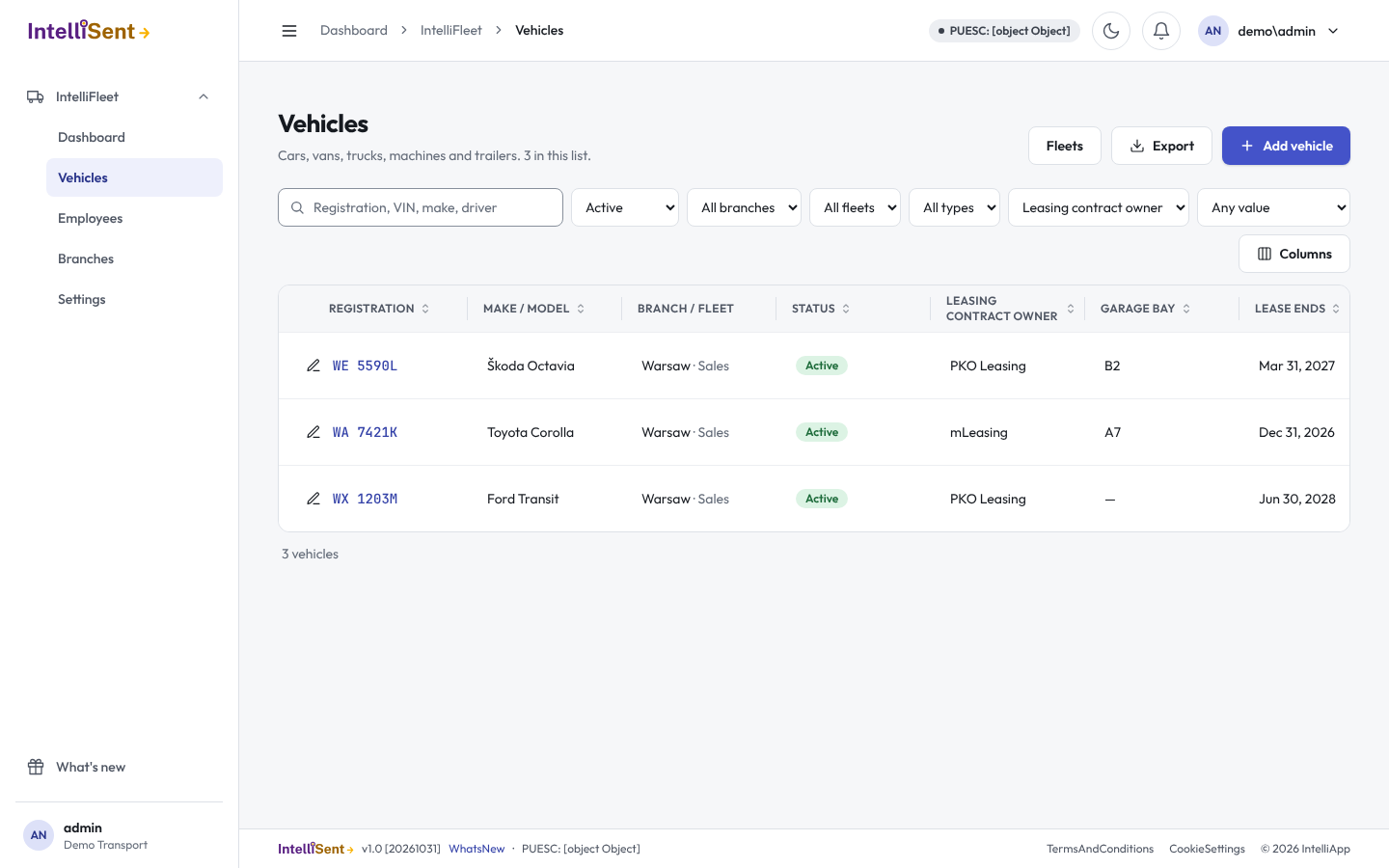
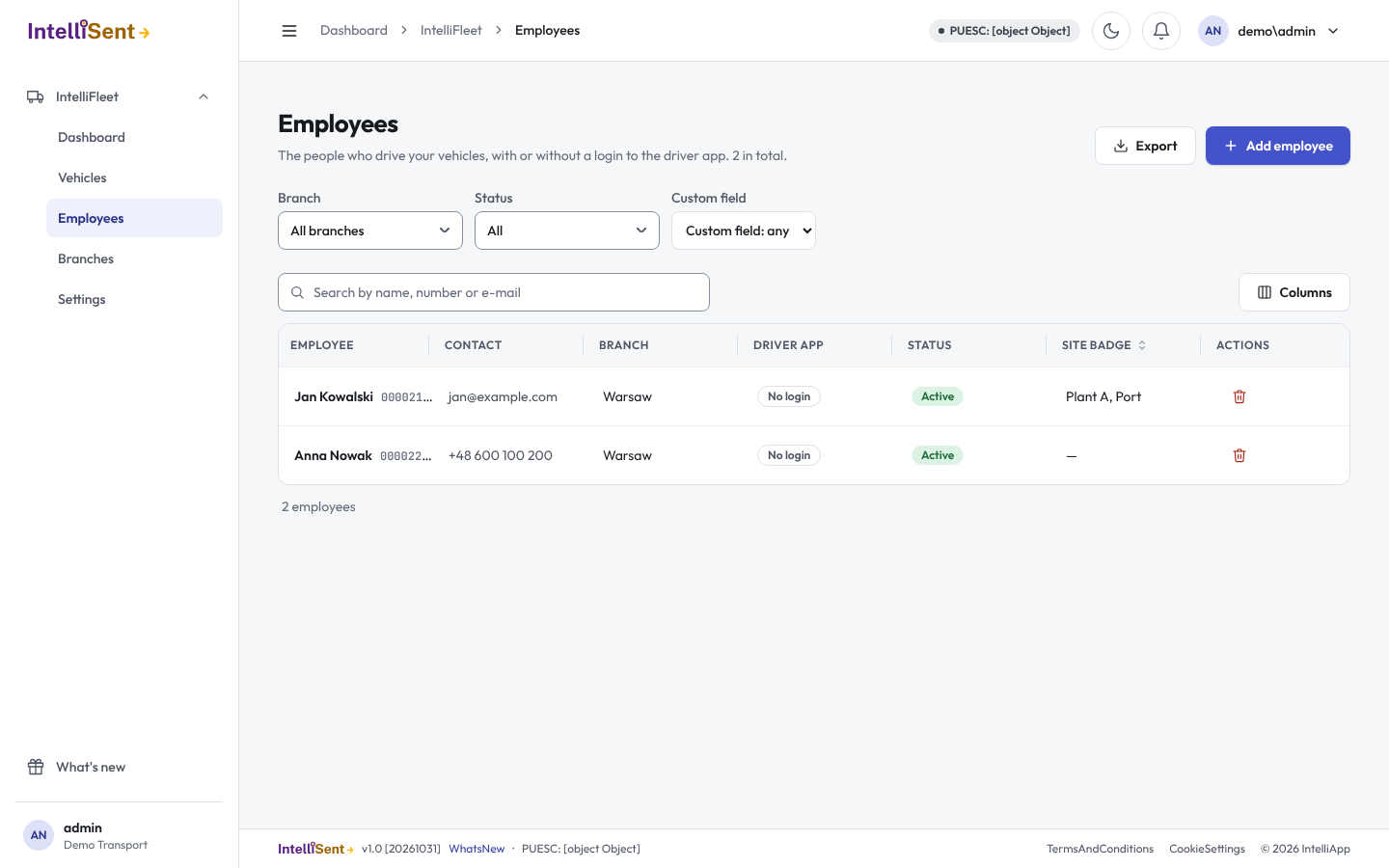
On the vehicle and employee lists, open Columns to show a custom field as a column; click its header to sort by it. The fuel entry, fault report, damage, trip and Handover lists show their fields as columns that sort the same way, with the same Custom field filter. The Custom field filter picks one field and then the text it contains, the choice it has, ticked or not, or a number or date range. Export saves the list as a CSV file with the columns you show, custom fields included.
In Reports, the custom fields of the report's records can be added as columns, filtered on and grouped by, for example Handover fields in Handovers, fault report fields in Faults and tasks, damage fields in Repairs and damages, fuel entry fields in Costs and Fuel consumption, trip fields in Trips and mileage, and insurance policy and financing agreement fields in Due dates and documents. Reports export to Excel and PDF with those columns.
Changing and retiring a field
- You can rename a field, change its values and who sees it at any time.
- Once any record has a value, its kind is locked, a value in use cannot be removed from the list, and it cannot be taken off a kind of record that has values.
- Retire hides a field from forms and lists but keeps the values already entered; tick Show retired and Bring back to use it again.
- A field without any values can be deleted.