
Documentation / Everyday use
Handovers
A handover protocol records the moment a vehicle changes hands: who gave it, who received it, the odometer and fuel, the damage both sides saw and the checklist of what came with the car. Both people sign it. Find it in the IntelliFleet menu under Handovers, and on the Handovers tab of a vehicle's or an employee's card.
Who can see and do handovers
Your edition has to include Vehicle handovers. Then, in Administration, then Roles, three permissions under IntelliFleet decide this:
- Handovers lets a user see the history and open the protocols.
- Do desk handovers also lets them hand a vehicle over at the desk, finish a handover left unsigned and cancel one.
- Keep checklist templates lets them change what the checklist asks for.
A user who sees only some branches (see Branch access) sees and hands over only the vehicles of those branches.
The history
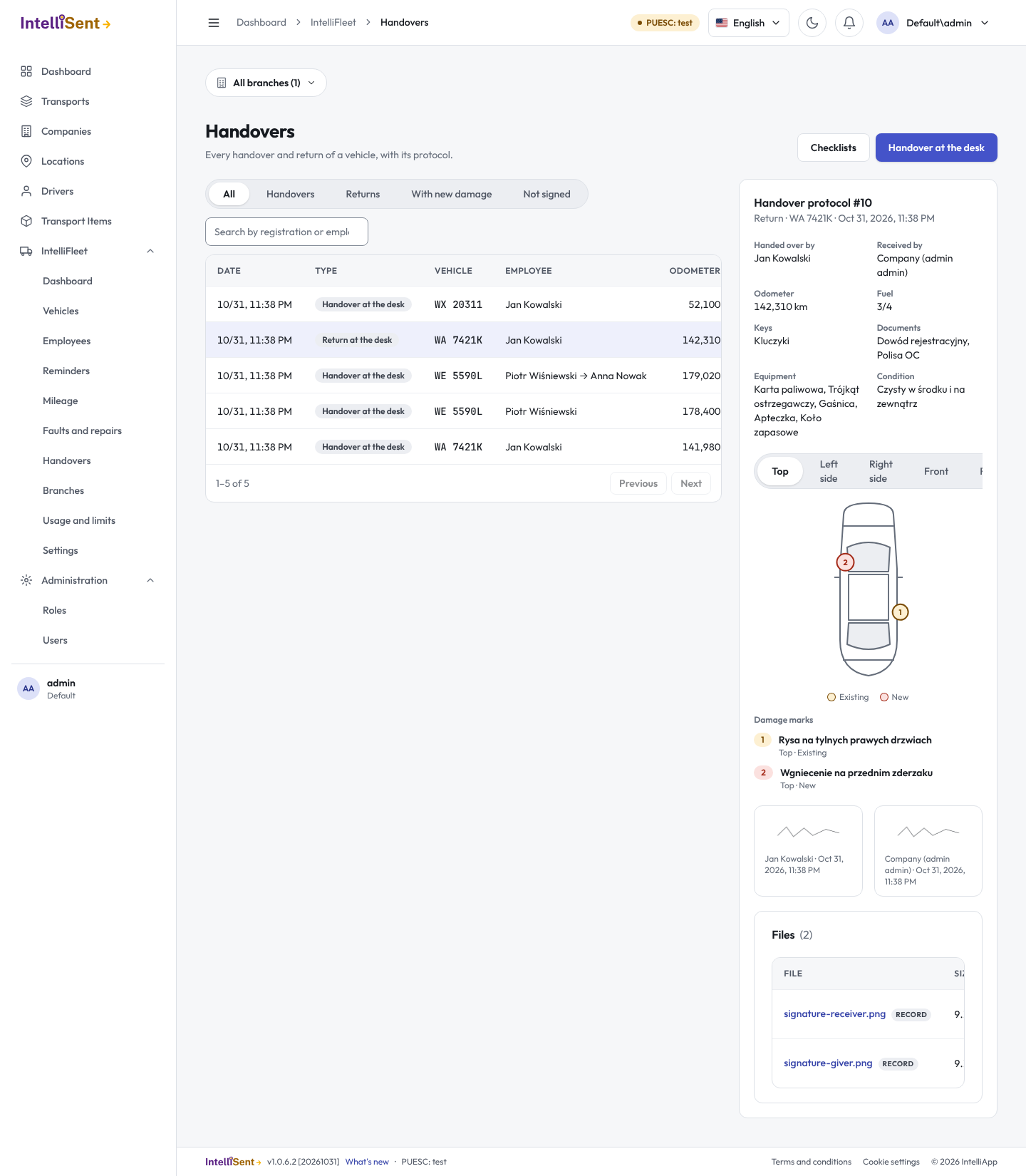
The list shows every handover and return, newest first. The chips narrow it to Handovers, Returns, the ones With new damage and those Not signed yet. Search by registration number or employee. Click a row to open its protocol beside the list: the two sides, the odometer and fuel, the checklist, the damage marks on the car diagram and both signatures. A cancelled handover is kept but hidden from the list.
Hand a vehicle over at the desk
Drivers with the app do their handovers and returns on the phone, also without signal (see Driver app); they show in the history like any other. Use the desk when the employee has no phone with the driver app. Click Handover at the desk and go through the steps.
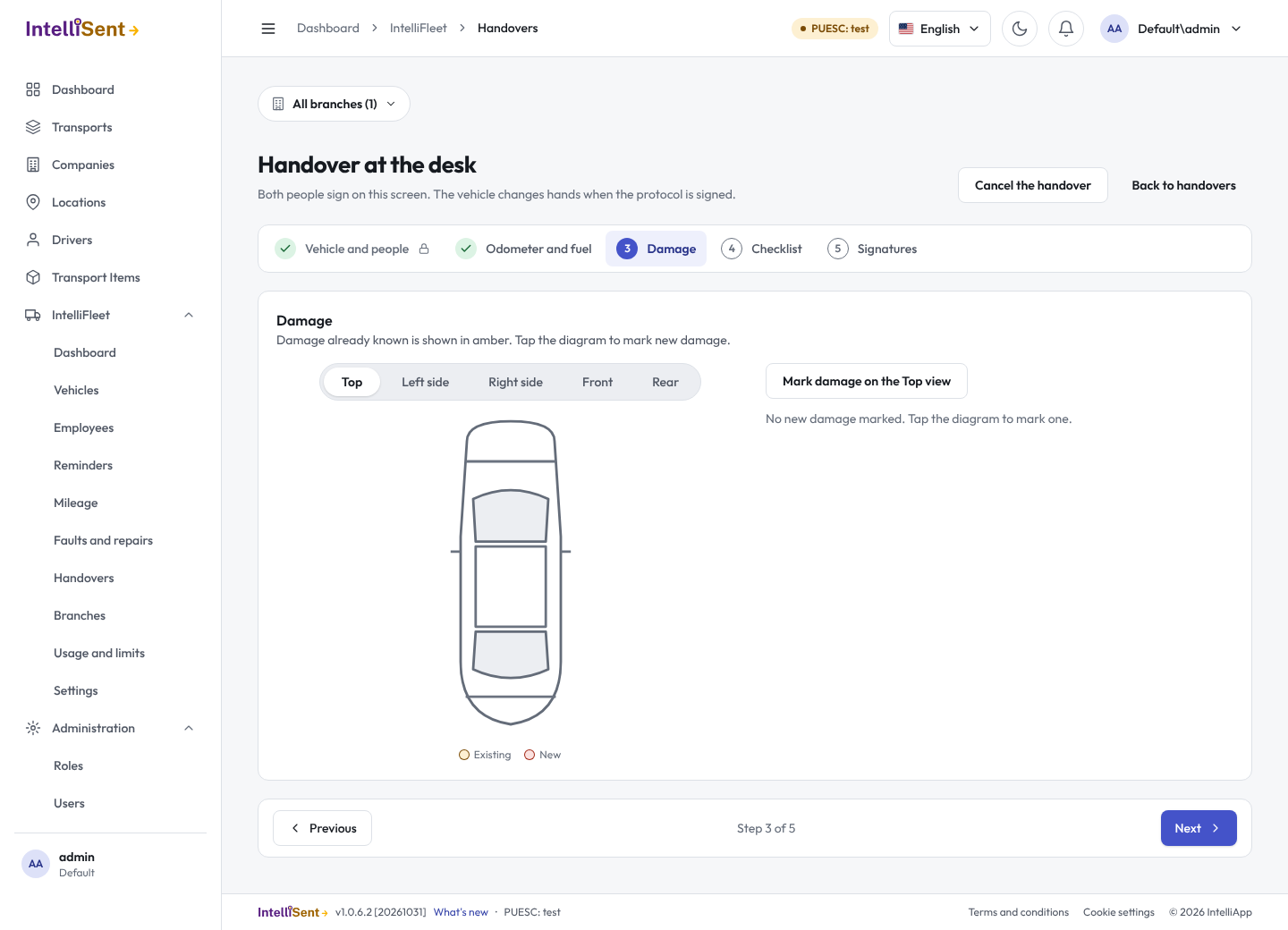
- Vehicle and people. Pick the vehicle. The one who holds it now gives it; when nobody holds it, the company gives it. Choose Hand over to an employee and pick who receives it, or Return to the company to take it back. Driver to driver is one handover, signed by both drivers. Click Next: the handover starts as a draft, and the vehicle and the people cannot be changed after that.
- Odometer and fuel. Enter the reading and the fuel level. The reading cannot be lower than the vehicle's last one.
- Damage. Damage already known is shown in amber. Switch between the views of the car and click where new damage is, or use Mark damage and describe it. Each new mark becomes a damage record of the vehicle (see Faults and repairs) once the protocol is signed.
- Checklist. Tick what is there, enter how many (for example two keys), and comment on anything missing. Add photos of the car here.
- Signatures. The person who gives the vehicle and the one who receives it sign with a finger or the mouse. The company signs through you when it is one of the sides. Click Sign and save.
Nothing changes for the vehicle until the protocol is signed. Then, in one go:
- the reading is added to the vehicle's mileage,
- the giver's assignment ends and the receiver's begins (a return leaves the vehicle with no holder),
- each new mark becomes a damage record.
If any of these is refused, for example because someone recorded a higher reading in the meantime, the protocol is not signed and you can correct it.
A draft you leave stays in the history as Not signed. Open it and click Finish at the desk to continue, or Cancel the handover to drop it.
Rules that apply:
- Only an active vehicle can be handed over, and only to an active employee.
- A moment that has not come yet is refused.
- A vehicle that someone holds can only be given by that person.
Hand over equipment
Equipment that is not kept in a vehicle, such as a phone, a laptop, a tablet or a fuel card recorded as equipment (see Equipment and tyres), changes hands with the same protocol. At the desk, click Handover at the desk and choose Equipment at the top of the first step.
- Who and what. Pick who gives: an employee who holds equipment, or Company (stock). Tick the items. Then choose who receives them: an employee, or Return to the company when an employee gives them back. Click Next.
- Items. Set the time, and for each item its condition (good, worn, damaged) and a comment. Untick an item that is not handed over after all; it stays with the giver.
- Signatures. Both sides sign, as for a vehicle.
When the protocol is signed, every item handed over moves to the receiver (or back to the company's stock) and its holder history shows the protocol number. The PDF lists the items with their serial numbers, condition and whether each was handed over. The history shows the items in place of the registration number.
Drivers can do the same on the phone under My equipment (see Driver app).
Rules that apply:
- Only the employee who holds an item can give it; the company gives only what is in its stock.
- Equipment kept in a vehicle goes with the vehicle's own handover, not on its own.
- An item cannot go to someone who already holds it, nor to an inactive employee.
A vehicle's handover also lists the equipment of that vehicle that is marked On the handover checklist, with its serial number.
The PDF protocol
When both people have signed, the handover gets a protocol number such as HO-0010 (a running number for your company) and, a few seconds later, a PDF protocol: the two sides, the odometer and fuel, the checklist, the damage marks and both signatures. Open the handover in the history and click Download PDF; until it is ready the screen says so, and reloading shows the button.
- The PDF is written in the language of the person who signed (English, Polish or German). Times in it are UTC.
- A protocol is a record. Once it exists it is never replaced or deleted, so the file you downloaded last year is the file the system still has. Each file is stored with a SHA-256 hash that proves it is unchanged.
- Drafts and cancelled handovers have no number and no PDF.
Checklists
Click Checklists on the Handovers screen. Each vehicle type can have its own checklist; the default one applies to every other type. A new handover copies the checklist of its vehicle's type, so changing a checklist does not change protocols already started. Start from the standard list fills in the usual items: keys, registration certificate, insurance policy, fuel card, toll device, warning triangle, fire extinguisher, first aid kit, spare wheel and the car's cleanliness.
Deleting employees
An employee named on a handover protocol stays in its history, so they cannot be deleted. Untick Active instead.