
Documentation / Costs, invoices and reports
Invoice inbox
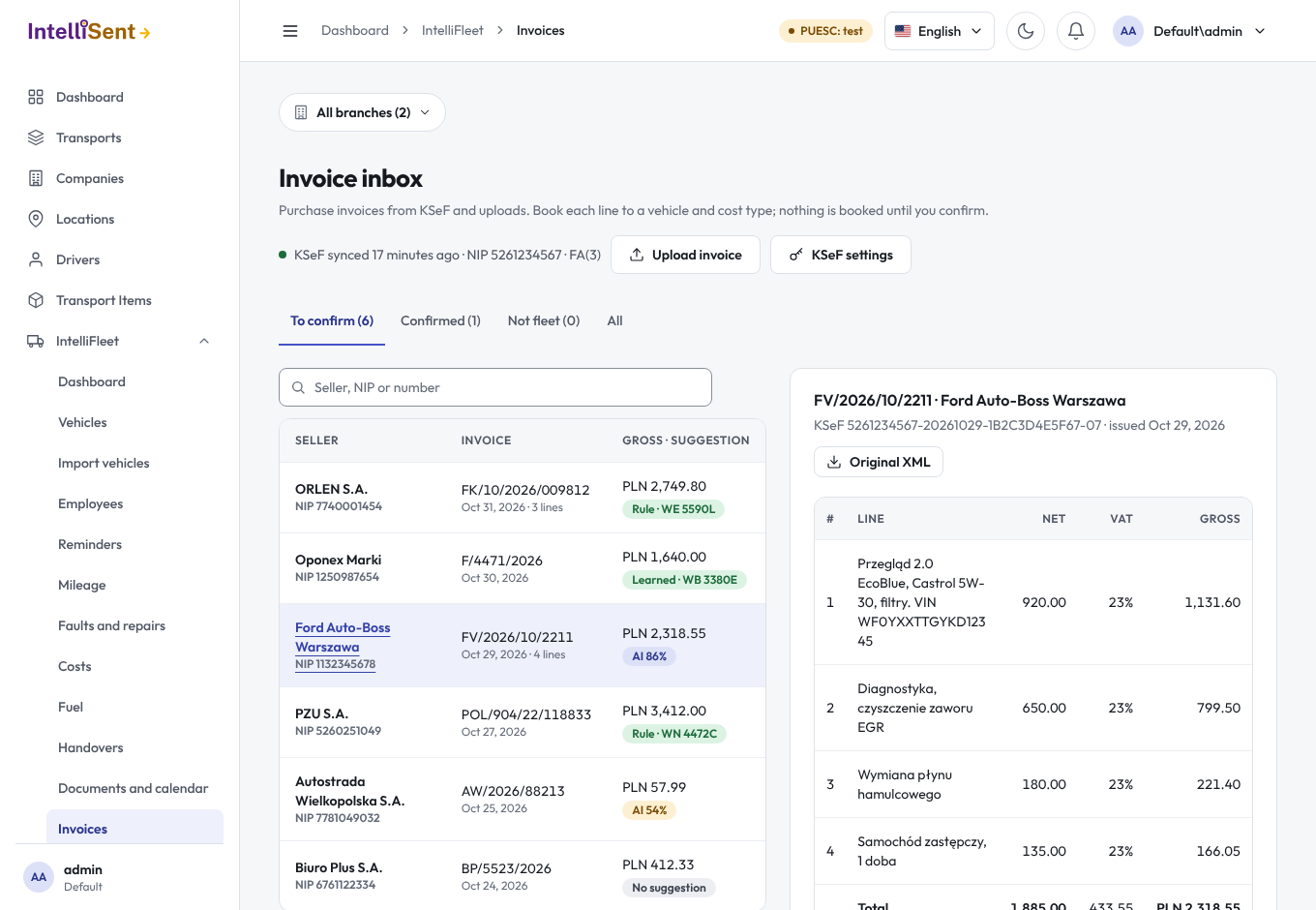
The invoice inbox brings your purchase invoices into IntelliFleet, so repair, fuel, tyre and other costs land on the right vehicle without typing invoices in again. Find it under IntelliFleet > Invoices. Invoices come from KSeF (Krajowy System e-Faktur) on their own, and you can upload others by hand. Nothing is booked until you confirm.
Who can see and change it
The inbox is part of the KSeF purchase invoices feature of your plan. In Administration, then Roles, three permissions under IntelliFleet decide the rest:
- Invoices lets a user see the inbox and the invoices in it.
- Confirm and book invoices also lets them book invoices, mark them not fleet and upload invoices.
- Connect KSeF lets them connect KSeF and manage the sellers marked never fleet.
Every user who may see the inbox sees all the company's invoices. Booking a line to a vehicle needs access to that vehicle's branch: the vehicle list in the inbox shows only the vehicles you can see.
Connecting KSeF
Click KSeF settings, then Connect KSeF, and fill in:
- Company NIP: the NIP whose purchase invoices are downloaded.
- Environment: Production for real invoices. Demo and Test are the Ministry of Finance's environments for trying KSeF out.
- KSeF token: generate it in KSeF (the taxpayer application, or your accounting office) for this NIP, with the right to view invoices. The token is stored encrypted and never shown again; to change it, enter a new one. Leave the field empty to keep the stored token.
IntelliFleet then downloads new purchase invoices every hour, starting with the last 60 days. Download now starts a download straight away; new invoices show up in a minute or two. The header of the inbox shows when KSeF was last downloaded from, or why the last download stopped (for example a token that KSeF no longer accepts). A download picks up where the last one ended, so an invoice never comes in twice. Each run downloads up to 50 invoices to stay within KSeF's limits; the rest follow in the next hour.
Deleting a connection stops the downloads. The invoices already in the inbox stay.
Uploading an invoice
For a seller outside KSeF, click Upload invoice and choose the file (up to 10 MB):
- An XML e-invoice (the FA structure KSeF uses) is read the same way as one from KSeF: seller, dates, amounts and lines.
- A PDF cannot be read, so type in what it says: the number, the issue date, the seller, the net and VAT amounts, and optionally the sale date, the seller's NIP, the currency and what was bought. It comes in as one line.
The same invoice cannot be added twice. If KSeF later delivers an invoice you uploaded as XML (same seller, number and date), the KSeF copy takes its place.
The inbox
Invoices are sorted into tabs: To confirm (new, suggested and partly booked invoices), Confirmed, Not fleet and All, each with its count. Search by the seller's name or NIP, the invoice number or the KSeF number. Pick an invoice in the list to see it on the right: its KSeF number and dates, its lines with net, VAT rate and gross, and the original file (Original XML or PDF).
A correcting invoice says which invoice it corrects. Its lines show the change, so a price cut is a negative amount.
Booking an invoice
Under the lines, pick what the invoice is for:
- Vehicle: the vehicle the cost belongs to.
- Book as:
- Repair: a new completed repair, or an open repair of the vehicle to attach the invoice to. Lines of the same vehicle booked as a new repair in one confirmation make one repair.
- Fuel entry: a fill-up with the litres from the line, the fuel (the vehicle's own unless you pick another) and the invoice's sale date. Fill-ups already imported from the seller's fuel-card statement are linked instead when their litres add up to the line.
- Tyres (purchase of a set): the purchase of a tyre set already listed in Equipment and tyres; the set gets the amounts and the date.
- Other expense: an expense of the expense type you pick.
- Click Confirm and book. The button shows how much is booked, gross.
Each booking is a Cost of the vehicle on the invoice's sale date (or issue date), with the invoice's number and seller, and its VAT counted as for every other cost (see Costs). The invoice's seller is added to the counterparties if it is not there yet.
Line by line
Click Split by lines to book each line on its own: every line gets its own vehicle, kind and details. To spread a line over several vehicles (a fuel-card invoice, tolls), click the split button on its row: the line is cut in two halves, and you can change the amounts. The parts of a line can never add up to more than the line. A fuel line split across vehicles shares its litres in the same proportion.
Take a line off with the bin button to leave it open: the invoice is then partly booked and stays under To confirm, so you can book the rest later or mark it not fleet. Book as a whole goes back to one choice for the whole invoice.
The negative lines of a correction can only be booked as Other expense: they lower the vehicle's costs.
Add a note to say why you booked the invoice differently from the suggestion; it is kept with the booking.
Suggestions
When IntelliFleet can tell which vehicle and kind an invoice is for, the inbox fills them in and shows the suggestion with why. It tries the cheapest ways first, and each line gets the first suggestion that fits:
- A correcting invoice is suggested as an expense of the vehicle the original invoice was booked to.
- A contract or policy number in a line, from a vehicle's Financing agreement or Insurance policy, names the vehicle. The suggestion is most confident when the amount is the monthly instalment or the premium you entered.
- A registration number, VIN or fuel card number in a line names the vehicle, however it is spaced. Litres from a fuel seller become a fuel entry, a workshop's line a repair, anything else an expense. A line that names two vehicles gets no suggestion.
- An open repair at the same workshop with the same net amount as the line, or as the whole invoice.
- What you confirmed before. Every confirmation teaches IntelliFleet what that seller's invoices usually are, and the choice confirmed most often is suggested next. When you book a line differently from such a suggestion, its rule loses ground, so a habit that stopped being true fades out.
Confirming a suggestion as it is keeps who suggested it. Work orders are never matched. When none of these fits and your company turned on AI matching, AI suggests for the lines left (see AI matching of invoices); otherwise you pick the vehicle and kind yourself.
Confirming automatically
Your company can let IntelliFleet book some KSeF invoices without a review. It is off until an administrator turns it on in KSeF settings, under Confirm automatically:
- Rules that may confirm an invoice: a contract or policy number with the expected amount, the registration number, the VIN, the fuel card number in the line, and learned seller rules. Tick only the ones you trust.
- Largest gross amount: an invoice above it always waits for you (1,000 by default, in your company's currency).
- Confirmations a learned rule needs: how many times people booked a seller that way before the rule may book it alone (5 by default).
- Daily digest to: the e-mail addresses that get a list of what was booked automatically the day before. At least one is needed.
An invoice is booked automatically only when every line has exactly one such suggestion, for the whole line. AI suggestions, corrections, open repairs and invoices in another currency always wait for you.
Invoices booked this way are listed in the Auto-confirmed tab (and in Confirmed). The invoice shows which rule decided. For 14 days, Undo takes the booking back: the costs it created are removed and the invoice returns to the inbox with its suggestions. A cost someone changed since stays booked. Undoing, like booking a line differently, makes the rule that decided trusted a little less.
Not fleet
Click Not fleet for an invoice that is not about vehicles (office supplies, say), or for the rest of a partly booked one. Nothing is booked, and it moves to the Not fleet tab. Tick never sells for the fleet to send the seller's later invoices straight there, and its other open invoices with them. Back to the inbox on a not-fleet invoice brings it back.
The sellers marked never fleet are listed in KSeF settings; Send to inbox again brings their later invoices back to the inbox.
Skip for now leaves the invoice as it is and shows the next one.
What counts against your plan
Your plan includes a number of KSeF invoices per vehicle. Only invoices downloaded from KSeF that you booked to at least one vehicle count, once each; uploaded invoices and invoices marked not fleet do not. Invoices booked automatically count the same way, and Usage also shows how many there were.