
Documentation / Driver app
Driver app
IntelliFleet has an app for drivers, on Android and iPhone. A driver signs in with their own login, sees the car they hold now, and scans the QR label on any company car to see which car it is and who has it. Handovers and returns start from the same scan, and the driver reports a fault or answers a condition check from the app too (see Faults from the phone, checks, tasks and stock).
Give an employee the app
- Open the employee (Employees, then click the name) and give them a driver-app login in the Driver app box (see Employees). The login gets the Fleet driver role, which may use the app and nothing else.
- Assign them their car (see Assignments). The car shows on My car from the moment the assignment starts.
- Tell the employee the company code, their user name and the password. The company code is the one your company signs in with in IntelliSent.
Sign in
Enter the company code, the user name or e-mail and the password, then tap Sign in. The app remembers the company and user name, and keeps the driver signed in for a day.
A login that needs a two-factor code cannot sign in in the app yet: the app says so, and the driver signs in on the web app first. A login the fleet office set to change its password on next login asks for a new password in the app (twice, against the company's password rules), then signs in with it.
Forgot password
Forgot password? under the sign-in form asks for the company code and the login's e-mail address, and IntelliSent e-mails a link to its reset-password page, the same as the web app's. The driver sets the new password there, then signs in in the app with it. A login without an e-mail address cannot reset its password this way: the fleet office sets a new one on the Employee card.
Change password
Profile, Change password asks for the current password and the new one twice. The new password must meet the company's password rules, which the screen lists.
Face ID or fingerprint
After the first sign-in with a password, a phone with Face ID or a fingerprint set up asks once whether to use it next time. It can also be turned on or off in Profile, Sign-in (turning it on asks for the password once). When it is on, the app asks for Face ID or the fingerprint as soon as it opens or the session ends, and the password always works too.
The password is kept in the phone's keychain (iPhone) or keystore (Android), which gives it out only after the phone's own Face ID or fingerprint check, never to the app alone. Adding a new fingerprint or face on the phone, or changing the password on the web app, turns it off; the app says so and the driver signs in with the password again. Changing the password in the app keeps it on.
Fleet policies
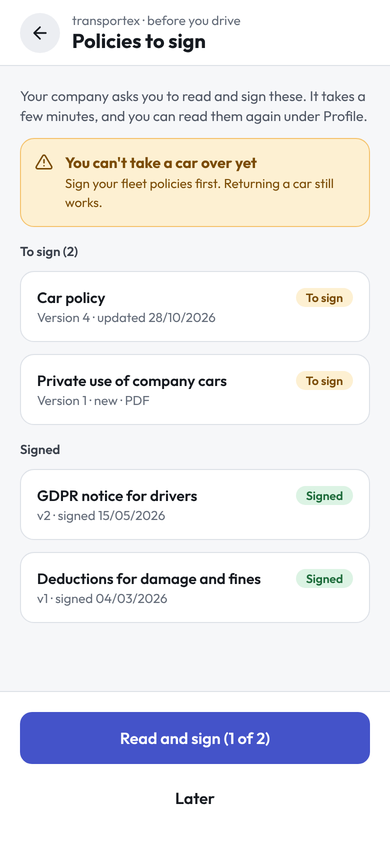
When the company has fleet policies the driver has not signed yet (see Fleet policies and consents), Policies to sign opens right after sign-in. Read and sign opens the first one: the driver reads the text to the end (or opens the PDF), checks their full name, signs with a finger and ticks I have read … and I accept it, then taps Sign. The next policy to sign opens until none is left. Later goes on to the app; the policies stay under Profile, where the driver can also read the signed ones again.
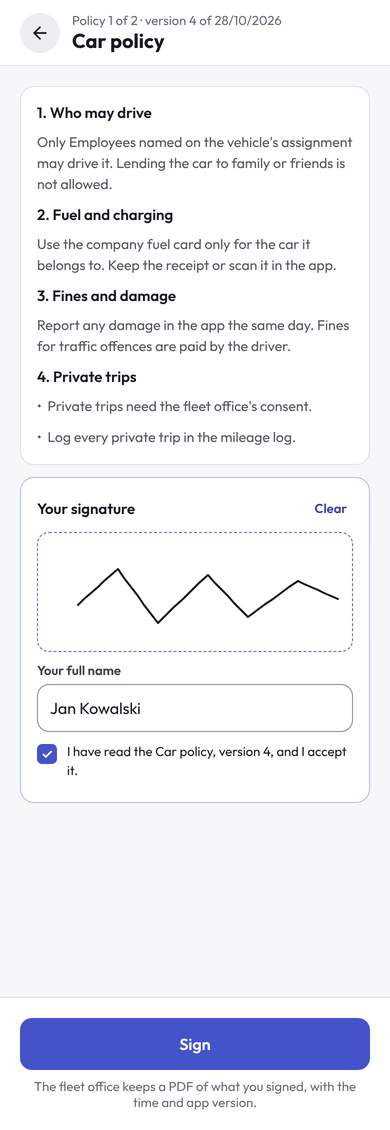
Signing needs a connection. The fleet office then sees the consent on the Employee card, with a PDF of what was signed, the time and the app version. A new version that asks for a signature appears again on the next sign-in.
When the company requires signed policies before a handover, Take over says You can't take a car over yet until the driver signs them, with a button to the policies. Returning a car always works.
My car
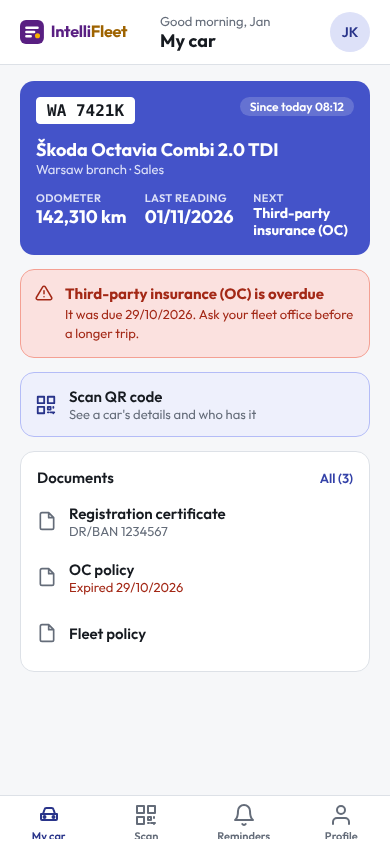
My car shows the car the driver holds now: its registration number, make and model, branch and fleet, since when the driver has it, the last odometer reading and the Next deadline. A red alert under the car says when a deadline of the car is overdue. The Documents card lists the first three documents the fleet office shared, with All opening the full list. A driver who holds more than one car sees the others under Also with you. Pull down to refresh.
- No car is assigned to you now means the driver has no open assignment.
- Your login is not linked to an employee means the login is not on an active employee card. Link it there, or tick Active again.
Book a pool car
A company can keep pool cars that any employee books for a few hours or days (see Pool car bookings). The Book tab of the app is where a driver finds one, and My bookings is where they follow it. Booking needs a connection: a request is not kept on the phone to be sent later. The tab is there only when the company's plan has vehicle handovers, which pool car bookings come with.
- Open Book. Pick up at is the branch where pool cars are picked up (the driver's own branch when it has some). From and To start at the next full hour for nine hours; type another time as Mon 09.11, 08:00. Vehicle type narrows the list to one kind of car.
- The list shows the pool cars of that branch, free ones first. A car that an approved booking already takes in that time is greyed out with its booked hours. The first free car is chosen; tap another free one to change it.
- Write what the booking is for under Purpose; the fleet office sees it when they approve. Tap Request. The app opens My bookings.
A branch can approve its bookings at once; otherwise the pool manager approves or rejects the request. The driver gets a notification on the phone (and the e-mail and bell the fleet office set up) when it is decided. Tapping the notification opens My bookings.
My bookings lists what is still to come under Upcoming and what is over under Past. A booking is Waiting for approval, Approved or Rejected (with the manager's reason and a Book another car button), and later In use, Completed, Cancelled or No-show. Cancel booking frees the car as long as it has not been taken over.
From an hour before an approved booking starts until it ends, Take this car opens the take-over (see Take over or return a car) with that car already chosen. The signed handover then starts the booking, and the return completes it. A booking not taken over within the company's grace period (60 minutes unless the company set another) becomes a no-show.
Reminders
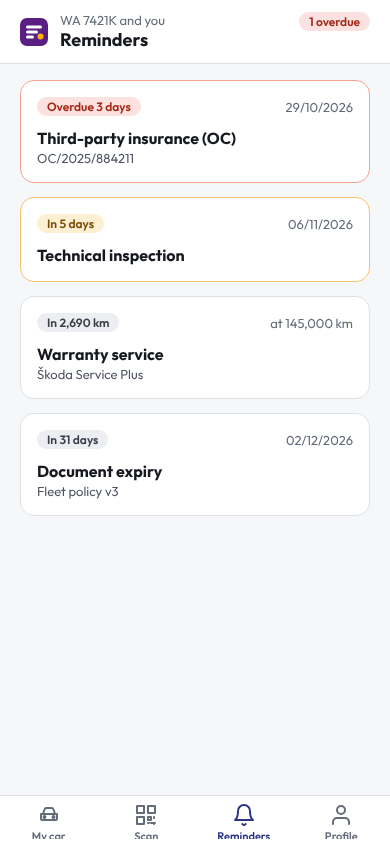
Reminders lists the deadlines of the car the driver holds that are overdue or coming up: insurance, technical inspection, warranty service, documents that expire and calendar events, most urgent first. Each card says how late or how soon it is (Overdue 3 days, In 5 days, In 2,690 km) and the due day or odometer reading. The tab shows only the car's own deadlines: a driver never sees another car's deadlines, nor an employee's personal ones such as a licence or medical check. Pull down to refresh.
When the fleet office acknowledges a deadline in IntelliFleet, it stays on the list marked Fleet office knows, and the app stops sending notifications about it. Acknowledging does not renew it: the deadline goes away when the new policy or the done date is entered.
Notifications
The first time the driver signs in, the phone asks to allow notifications. With them allowed, the driver gets one notification for the deadlines of their car that are overdue or inside the reminder window (see Reminders): at most once in 7 days for each deadline, and at once when it becomes overdue. Tapping it opens Reminders. A driver who says no still sees everything on the Reminders tab. Signing out stops the notifications on that phone.
Every notification counts as one use of Push on the usage page (see Usage and limits). Push has no limit, and a reminder is never held back.
Documents
The documents of a vehicle (see Documents) are shown to the driver only when Show to drivers in the app is ticked on the document. The driver sees the visible documents of the car they hold now, and the visible documents that belong to the driver as an employee (such as a licence scan), on My car and, with All, in a full list: name, number and expiry (Valid to or, in red, Expired), and the document's files. Tapping a file opens it in the phone's viewer; the address works for a few minutes and only for that file. When a car is handed back, its documents disappear from the driver's app.
Fuel cards
When the driver holds a fuel card, My car shows a Fuel cards tile. It lists the cards kept with the driver and the cards kept with the car they hold now: name, number, expiry and the car. A card with a PIN (set in Fuel) has Show PIN:
- The phone asks for Face ID, a fingerprint or its passcode. A phone with no screen lock shows no PINs; set one in the phone's settings first.
- The PIN appears for 30 seconds, then hides itself. Hide PIN hides it sooner, and so does leaving the app.
- While the PIN is on screen, Android blocks screenshots and screen recording; an iPhone keeps it out of recordings and the app switcher (iOS does not let an app block a screenshot).
Each time a PIN is shown, the fleet office sees who and when on the card. When the car is handed back, its cards and their PINs disappear from the driver's app.
Fuel and receipts
Fuel and receipts on My car sends a receipt of the car the driver holds now: a fill-up, parking, a car wash or a toll.
- Photo. Fit the whole receipt in the frame and tap the shutter, or choose a photo you took earlier. Flash turns on the phone's light for a dark receipt.
- Check and send. When the company reads receipts with AI, the server reads the photo while the driver waits and fills in the station, the date, the fuel card, the fuel, the litres, the net amount and the VAT, marked Read by AI. Check them and correct what is wrong (what you type always wins over the read), pick what it is (Fuel, Parking, Wash, Toll or Other), type the odometer (the hint shows the car's last reading; for a receipt opened again from the queue, the last one up to the receipt's day) and, for fuel, say whether you filled the tank up: Tank filled up is what fuel consumption is worked out from. Tap Send to fleet office.
- Fuel becomes a fill-up of the car, with its cost and odometer reading (see Fuel). When the fuel card statement later brings the same fill-up (same card, same day, quantity within 1%), it is linked to this one, not added twice.
- Parking, Wash, Toll and Other become a cost of the car, with the photo of the receipt (see Costs).
- The fleet office sees that it came from the driver app and whether AI read it, and can correct it there.
Without AI. When the company's edition or its AI limit allows no reading, the app says AI reading is not available for the company now; when the AI could not read the receipt this time, it says the receipt could not be read now. Either way the driver types the litres and the amounts. A VAT more than the net amount is refused: check both. No photo: type it in does the same without a photo.
Without signal. The photo is kept on the phone and the receipt waits under Reports on this phone on My car, like a fault report. It is sent with its photo when the phone is online again, and the server reads it then: the driver confirms nothing more. Type what you know before sending; what you type wins over the read. If the server cannot read it either, the receipt shows Not accepted with the reason. Tap Type it in, type the litres and the amount and send it again.
Trips
Start trip on My car records a trip for the VAT mileage log. It shows only for a car kept in the log, that is a car with an odometer reading whose VAT log milestone is Start of the VAT log (see Mileage).
- Start. Pick Business or Private (Private shows only when the car's private-use policy allows private use), type the odometer, the purpose (tap a suggestion from the company's earlier trips) and where you are going. From is filled in from the phone's location, marked GPS; without location access, type it. Add a photo of the odometer is optional. Tap Start trip. Nothing is sent yet: the trip is kept on the phone, also when the app is closed, and My car shows End trip until you end it.
- End. Type the odometer at the end (higher than at the start; a trip of 0 km is not saved, use Discard trip instead) and the route, optionally with a photo. Ended at is filled in from the location. Tap End trip.
The trip lands in Mileage > Trips like one typed in the office, marked as coming from the driver app, with the end odometer as a reading of the car.
- Gap since the last trip. The odometer hint says where the car's last trip ended. When the start is higher, the app says how many km were driven with no trip: the fleet office sees that gap in the log. Add the missing trip later from Trips in the office if you drove it.
- Without signal. The trip waits under Reports on this phone and is sent with its photos when the phone is online again, like a fault report. The end screen says so.
- Start below the car's odometer. The start cannot be lower than where the car's last trip ended or its latest reading: the app says The odometer at the start must not be lower than that value.
- Started by mistake. Tap Discard trip under End trip and confirm: the trip and its photos leave the phone and nothing is sent.
Scan a QR code
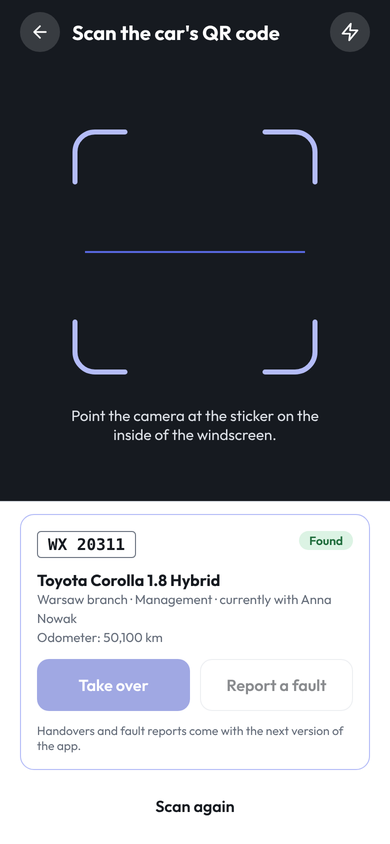
Tap Scan QR code (or Scan in the tab bar), allow the camera the first time, and point it at the label. The app shows the car: registration number, make and model, branch and fleet, odometer, and who has it now. Only your company's cars are found; a label of another company's car says that no car has this code.
If the label is damaged, tap No QR code? Enter the code from the label and type the code printed under it. A phone's own camera app can also read the label: it opens the driver app on that car.
Take over or return a car
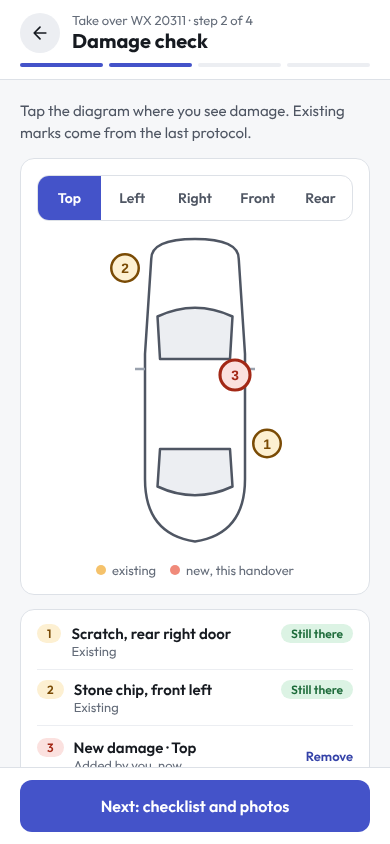
Scan the car's label. On a car someone else has, or nobody has, tap Take over; on your own car tap Return (or Return car on My car). The app goes through the four steps of the protocol, the same as the desk handover (see Handovers):
When the company requires signed fleet policies, a take-over waits until the driver has signed them (see Fleet policies).
- Odometer and fuel. Type the reading, take a photo of the dashboard and pick the fuel level. The reading cannot be lower than the car's last one.
- Damage check. Damage already known is shown in amber. Switch between the views of the car and tap where new damage is, pick what it is, add a note and take a close and a wide photo.
- Checklist and photos. Take the six photos of the car and tick what is in it. For keys, pick how many. Equipment the fleet office marked for the checklist (see Equipment and tyres) is on the list too.
- Summary and signatures. Check the summary. Both of you sign with a finger: when you take a car over from a colleague, they sign on your phone as the one who gives it. Tick the confirmation and tap Sign and finish handover (or Sign and return the car).
The car changes hands once the protocol reaches IntelliFleet: the reading goes to the car's mileage, the assignments change, new damage becomes damage records and the PDF protocol is made, as for a desk handover. A return leaves the car with no holder.
Without signal
Starting a handover needs a connection once, to load the car's checklist and known damage. After that the driver can finish it without signal. The signed handover waits on the phone under Handovers on this phone on My car and is sent with its photos as soon as the phone is online again, also after the app was closed. Send now tries at once.
- Sending the same handover twice never makes two protocols, so a send that was cut off can simply be tried again.
- Not accepted means IntelliFleet refused it, for example because someone recorded a higher odometer reading or another driver took the car in the meantime. The message says why. Tap Discard and, if needed, do the handover again.
- A handover is kept on the phone until it is sent or discarded. Signing out does not delete it: it is sent after the next sign-in.
My equipment
My equipment on My car lists the equipment you hold outside a car, such as a phone or a laptop. Tick what you hand over, set each item's condition and add a comment, then choose Company (fleet office) to give it back or a colleague to pass it on. Both of you sign on your phone. Like a car's handover, it waits on the phone without signal and is sent when you are back online. Loading the list needs a connection once.
QR labels
Every vehicle has its own QR label. Open the vehicle (Vehicles, then click it); on the Overview tab, QR label shows the code. Click Print label to print it about 5 cm square with the registration number, and stick it on the inside of the windscreen.
The label carries a random code, not the vehicle's number in IntelliFleet, so it tells nothing to someone outside the company.
Updating the app
The app checks its version each time it starts. When a new version is out, a note at the bottom says so: Update opens the store and Later closes the note until the next version. When the version on the phone is too old to work with IntelliFleet, the app shows only Update the app until the driver installs the new version from the App Store, Google Play or TestFlight. Handovers and reports still waiting on the phone are sent after the update.
Small fixes arrive without the store: An update is ready offers Restart, and the fix also applies the next time the app opens. If the driver is in the middle of a handover or a report, the app first asks Restart now?, as what was entered on that screen would be lost; Stay keeps the screen.
Language and signing out
On Profile the driver picks English, Polish or German, or follows the phone's language, and signs out.