
Documentation / Everyday use
Pool car bookings
A pool car is a company car that nobody keeps: employees book it for a time range, pick it up at a branch and bring it back. Find the bookings in the IntelliFleet menu under Bookings. A pool car's card also has a Book button.
Who can see and book
Bookings come with Vehicle handovers, so your edition has to include them (see Handovers). Then, in Administration, then Roles, three permissions under IntelliFleet decide this:
- Pool car bookings lets a user see the week and the list.
- Book pool cars and change bookings also lets them book, change a booking whose car has not been handed over yet, and cancel one.
- Approve pool car bookings makes the user a pool manager: they approve or reject requests.
A user who sees only some branches (see Branch access) sees and books only the pool cars picked up in those branches.
Make a vehicle a pool car
Open the vehicle, click Edit and tick Pool car. Picked up at says where the car is collected; leave it at Its own branch when that is the vehicle's branch. Only an active pool car takes bookings; a car in repair or otherwise inactive shows in the week, greyed out.
Who approves
Approval is set per branch. Open IntelliFleet > Branches (see Branches), edit the branch and tick Approve pool car bookings at once if bookings of cars picked up there need nobody's approval. When it is off, every booking of those cars is Requested until a pool manager approves or rejects it, the manager's own bookings included.
When a booking is approved or rejected, the employee gets an e-mail (when their employee record has an e-mail address), and the employee's user and the person who made the booking get a notification in the app and, when they use the driver app, on their phone (see Driver app). A rejection carries the reason the manager wrote.
The week
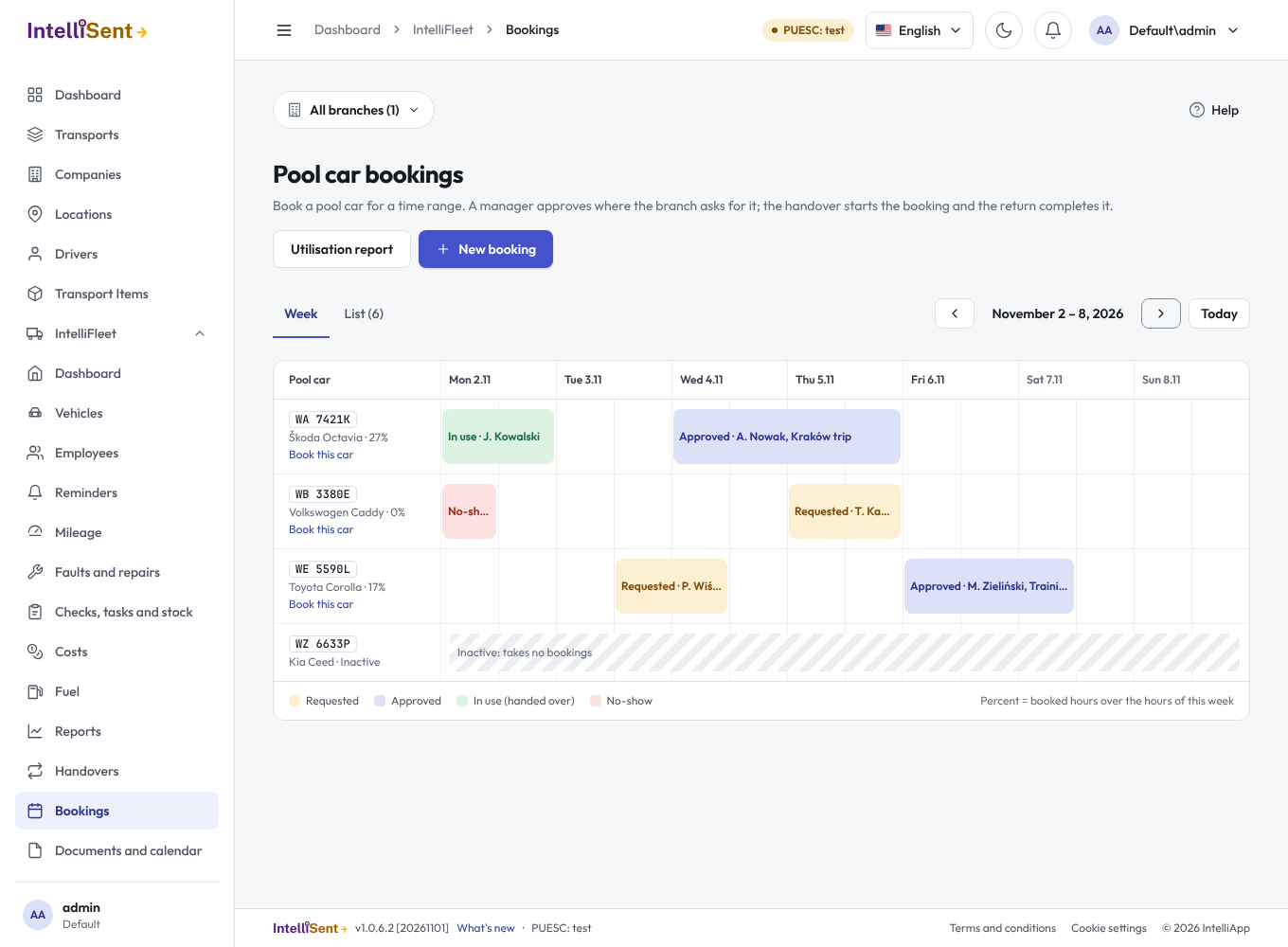
The Week tab has a row per pool car and a column per half day, Monday to Sunday. Each booking is a bar in its colour: Requested amber, Approved blue, In use (the car was handed over) green and No-show red. The percentage beside a car is how much of the week it is booked: approved and completed hours over every hour of the week. Use the arrows to move a week back or forward and Today to come back. The Branch and Fleet filters at the top of IntelliFleet narrow the cars. Cancelled and rejected bookings are not shown.
The List tab shows the same week's bookings as a table; Awaiting approval keeps only the requests. Click a bar or a registration number to open the booking.
Book a car
Click New booking, Book this car under a car in the week, or Book on the car's card. Pick the pool car, the employee, From and To, and say what it is for. The panel tells you whether the booking will be approved at once or waits for a pool manager. Click Book.
Rules that apply:
- Only an active pool car can be booked, for an active employee.
- A booking cannot start or end in the past, and it lasts at most 31 days.
- Two approved bookings of one car never overlap. A request for a time that an approved booking already takes is refused at once. Two requests may overlap; the manager approves one of them, and the other can then no longer be approved.
- A booking can be changed or cancelled until the car is handed over. Changing an approved booking's car, employee or times sends it back for approval, unless its branch approves at once.
Approve or reject
A pool manager opens a requested booking from the week or from Awaiting approval and clicks Approve or Reject. Write the reason in Reason before rejecting; it goes into the e-mail. A booking is approved only if the car is still free and still takes handovers.
Hand the car over and take it back
The handover starts the booking: when the employee who booked the car receives it in a signed handover (on the phone or at the desk), from an hour before the booking starts until it ends, the booking is In use. From an approved booking, Hand over opens the desk handover with the car and the employee already picked. When the car comes back in a signed return, the booking is Completed. Both protocols are linked from the booking.
No-shows
An approved booking whose car is not handed over within 60 minutes of its start becomes a No-show, and the car is free again. The system checks every five minutes. The number of minutes is a company setting; ask your administrator if your company uses another one.
The utilisation report
Utilisation report at the top of the screen opens the report under Reports: a row per pool car with its bookings, how many were completed and how many were no-shows, the booked hours, the hours of the period and the utilisation in percent, with a chart of booked hours per month. It takes the period, branch, fleet, vehicle and driver filters of every report. Click a car to open its card.