
Documentation / Getting started and setup
Branches
Branches are the places and units of your company that vehicles belong to: regions, branches, depots, or whatever your company calls them. You arrange them in a tree, for example a region with branches under it and a depot under a branch. Every vehicle will have one home branch, and later the reports can total costs per branch.
Who can see and change branches
In Administration, then Roles, two permissions under IntelliFleet decide this:
- Branches lets a user see the list.
- Edit branches also lets them add, change, move and delete branches.
- Manage branch access lets them decide who sees which branch; see Branch access.
The menu entry IntelliFleet > Branches shows only for users with the first permission.
The list
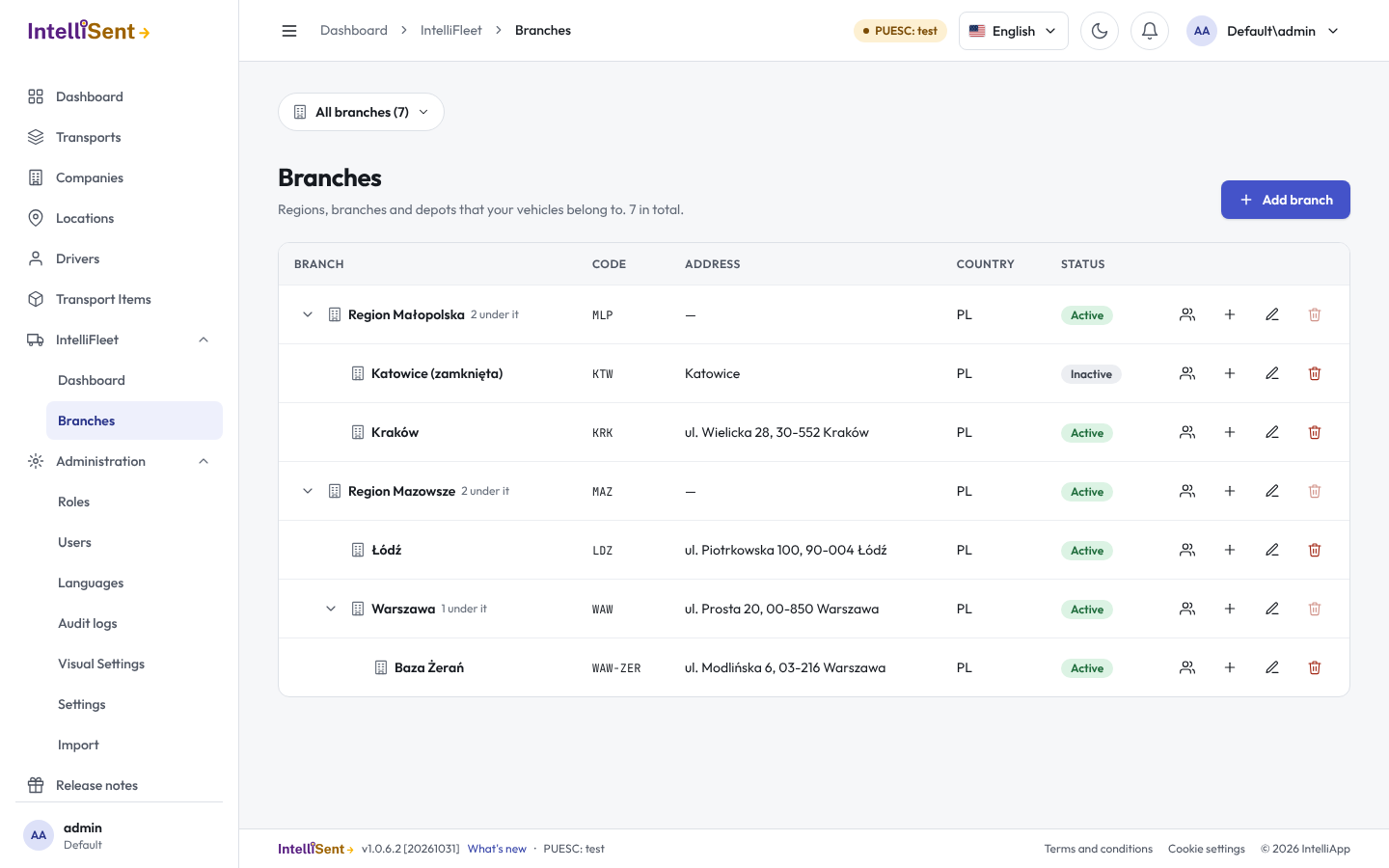
The list shows the tree: the branches at the top level first, each followed by the branches under it, every level sorted by name. Use the arrow beside a name to hide or show what is under it. Each row shows the code, the address, the country and whether the branch is active.
Add a branch
- Click Add branch for a branch at the top level, or + on a row to add one under that branch.
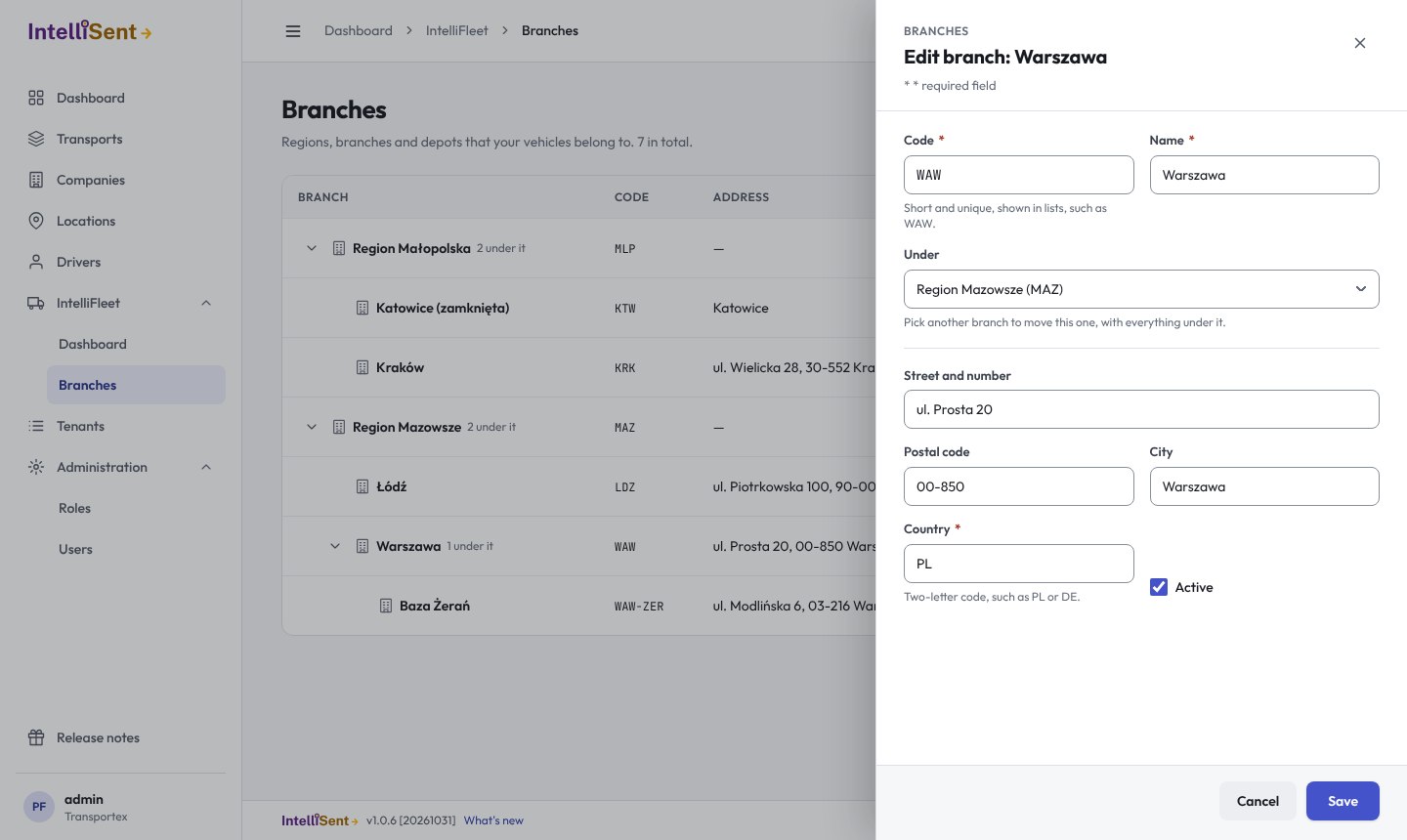
- Fill in the Code (short and unique, such as WAW, shown in lists) and the Name.
- Add the address if you want: street and number, postal code, city, and the two-letter Country code (PL is filled in).
- Click Save.
Two branches of your company cannot have the same code, whatever its case: waw and WAW count as the same.
Change or move a branch
Click the pencil on a row. Change what you need and click Save.
To move a branch, pick another branch in Under, or Nothing (top level). Everything under it moves with it. The list offers only the branches it can go under: not the branch itself and not the branches under it.
Untick Active for a branch you no longer use but want to keep, for example a closed depot.
Delete a branch
Click the bin on a row and confirm. A branch cannot be deleted while:
- branches sit under it (move or delete them first; the bin is greyed out), or
- vehicles or employees belong to it (move them to another branch first).
A deleted branch stays in the history, so its code can be used again for a new branch.
The map
Map in the page header shows each active branch you may see as a pin, with its number of active vehicles on it. The Branch and fleet in the header apply. Click a pin to see the branch's address, its vehicles, open faults and overdue Due items, each counting the branches under it too; each figure opens its list narrowed to that branch, and Edit Branch opens its form. The list beside the map has every branch, most overdue first.
The address is located when a branch is saved, through OpenStreetMap's free search, and the place is kept on the branch, so the map does not look it up again. When the street is not found the pin is placed at the city and the list says Pin placed from the city: check the address and save it again. A branch whose address is not found at all, or that has no address, is listed but has no pin. Branches saved before the map existed, or made by the import, have no place yet: the map says how many and Locate addresses looks them up, a few at a time (a user who may change branches). The map tiles are © OpenStreetMap contributors.
Still to come
The branch's default cost centre and its manager, who will get the branch's reminders, come with the cost centres and the employees.